VK: connect a community
Your store's community sends order status messages and marketing mailings to customers in their VK private messages.
Open Integrations → VK as the CRM owner or a full administrator. The screenshots below show the Russian interface.
1. Prepare the community
Open VK in a browser, signed in as an administrator of your store's community.
- In the community, select Manage → Messages.
- Enable Community messages and save the change.
- Go to Manage → Advanced → API usage → Access tokens.
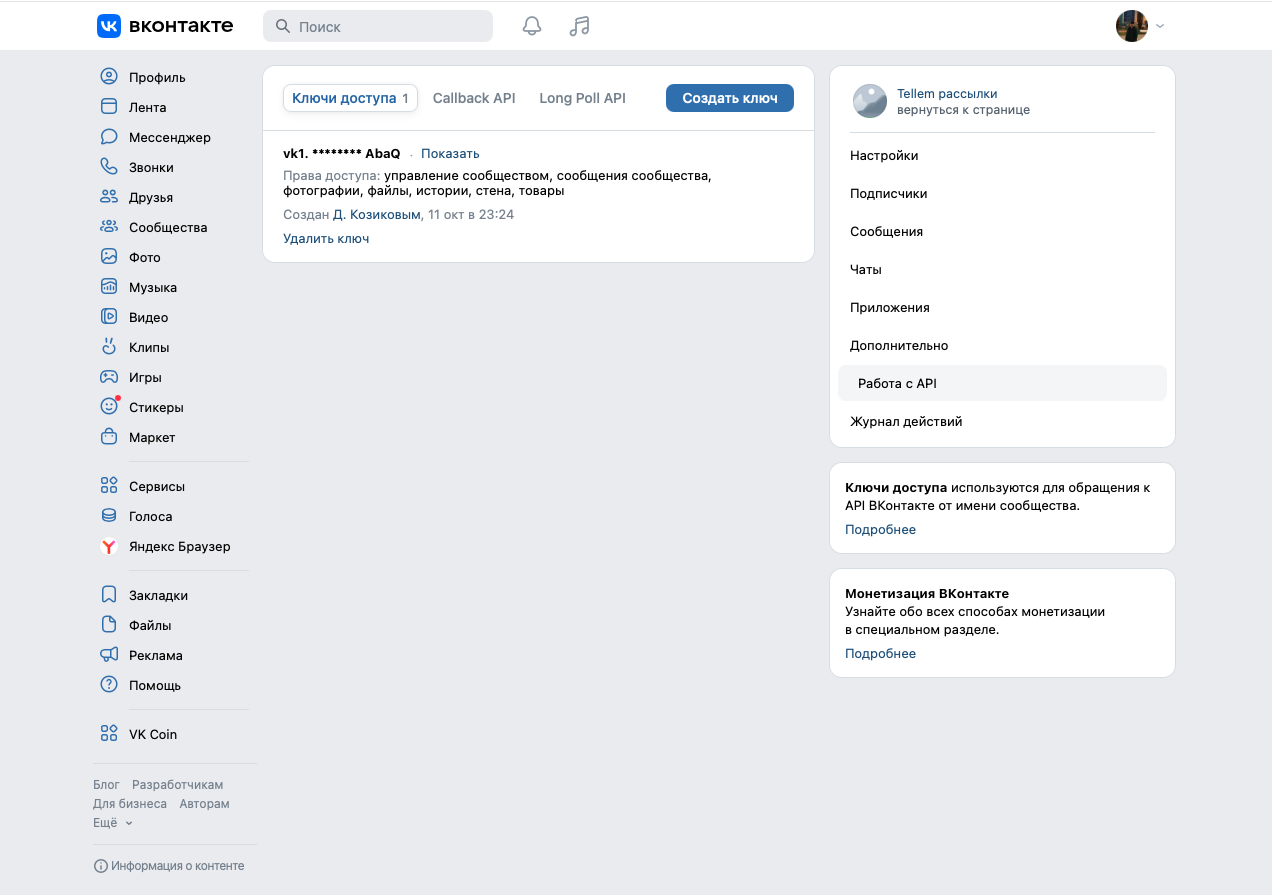
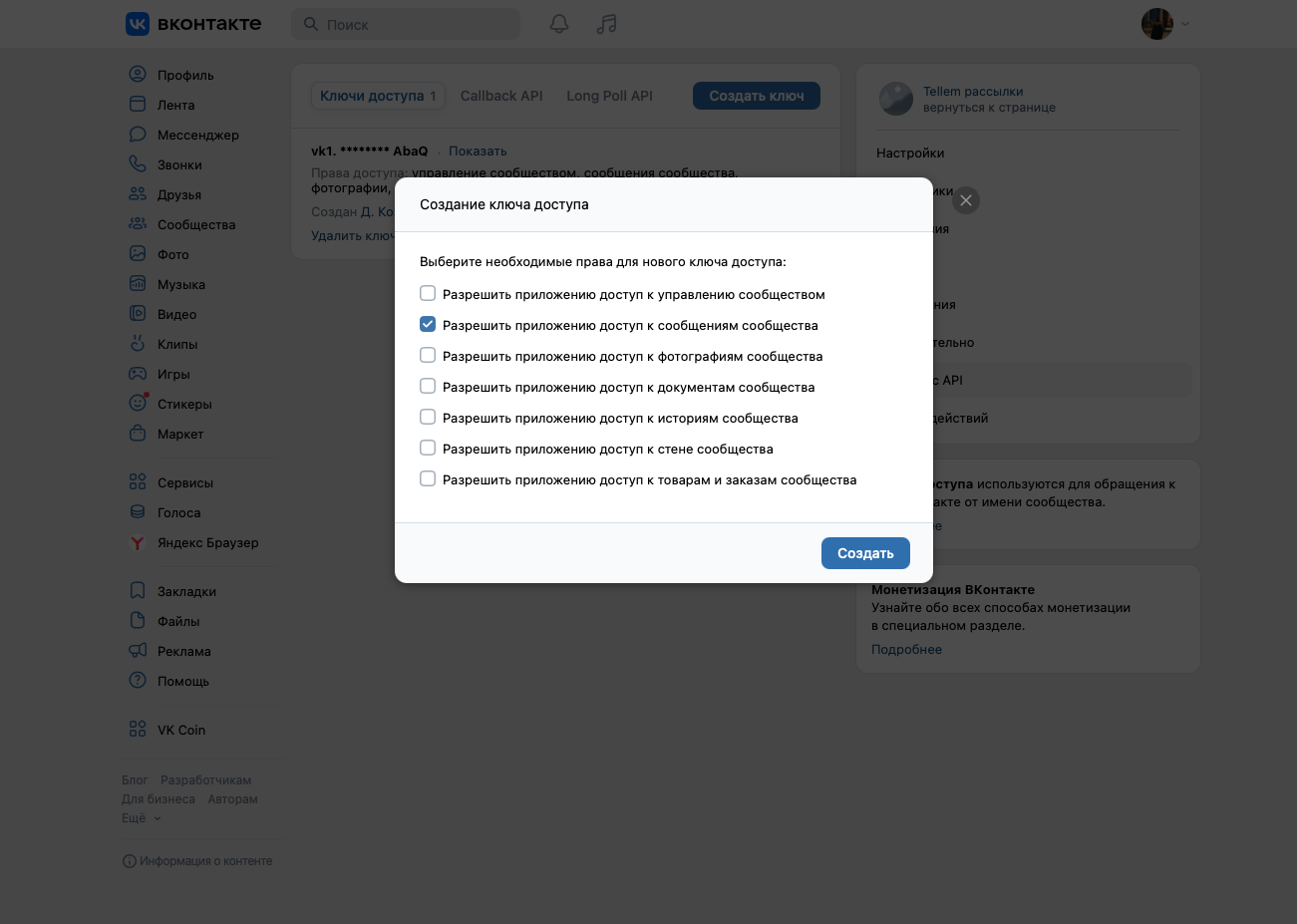
- Click Create token. Select only Allow the application to access community messages, then click Create. Complete any confirmation requested by VK.
- Return to the token list, click Show, and copy the entire new token.
If you do not have a community, create one first. The location of API usage in VK's management menu may differ.
Keep the token secret
Paste it only into CRM. Do not send it to customers or publish it in screenshots.
2. Connect it in CRM
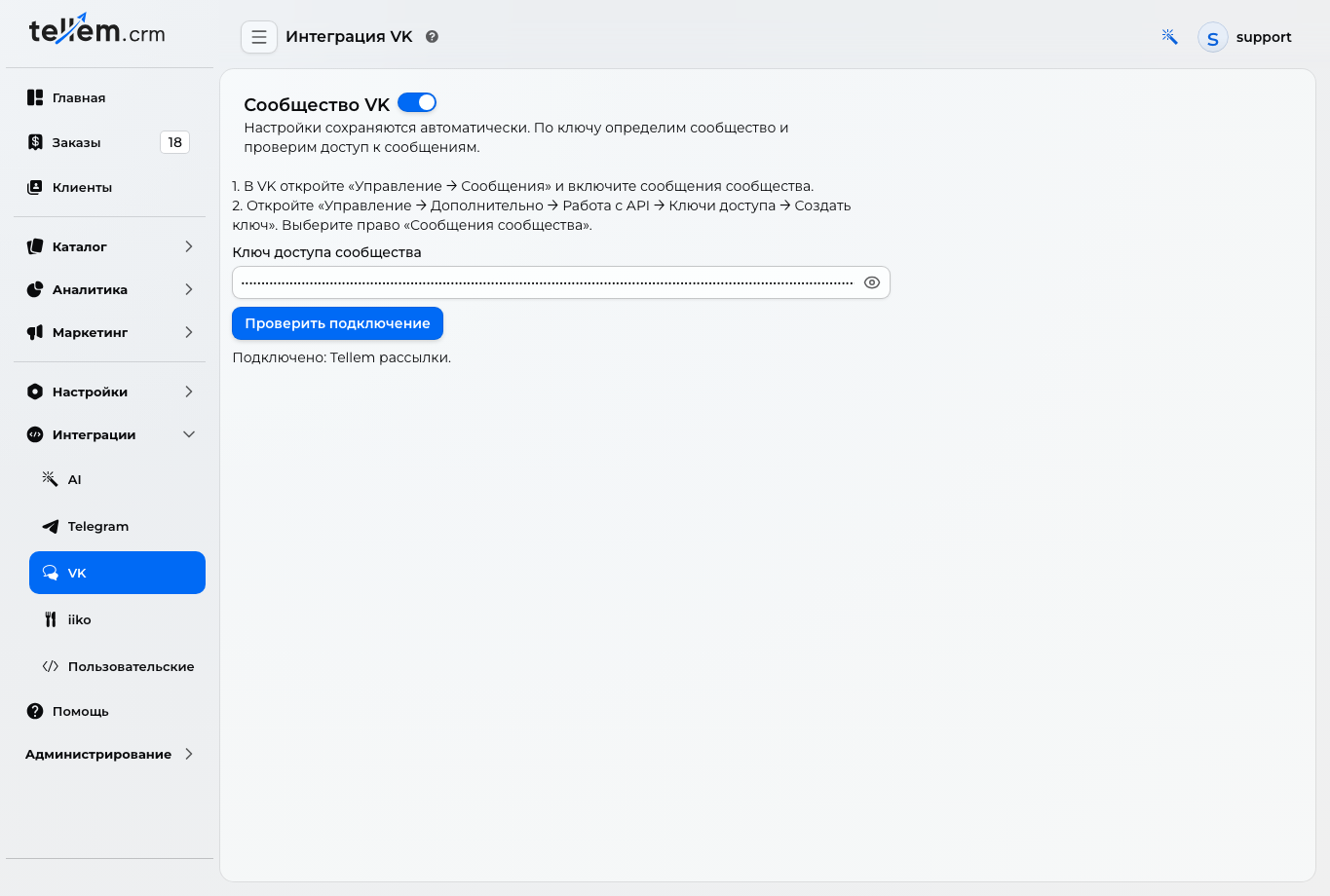
- Open Integrations → VK.
- Enable the switch beside VK community to show the connection fields.
- Paste the token into Community access token, then leave the field.
- Wait for Connected: … and check the community name.
Settings save automatically; there is no separate Save button. CRM identifies the community from the token, so you do not need to enter its ID. Check connection repeats the check. It does not send messages to customers.
VK ID sign-in and the community token are configured separately: the token is used for messages.
3. Enable customer notifications
The token lets the store send messages, but each customer must separately allow messages from the community. After signing in with VK ID or linking VK, the application offers VK notifications. The customer confirms permission in that window.
Share the connection guide with screenshots. Customers do not need to follow the community's news to receive order notifications.
Customers choose their notification channels in their profile. Marketing mailings also require Mailings to be enabled; see Send a mailing.
If the connection fails
| What you see | What to do |
|---|---|
| The token is invalid or revoked | Create a new community token and replace it in CRM |
| The token does not have the required access | Create a token with the Community messages permission |
| Settings could not be checked or saved | Try the check again later and wait for Connected |
| The customer does not see the prompt | Check the CRM connection and whether VK is linked to their store account; the prompt appears after linking or signing in again |
| The customer receives no messages | Check message permission in VK and whether VK notifications are enabled in the app profile; for mailings, also check that the customer has not opted out |