Catalog import
Upload products or categories from a CSV table or a Yandex Market export (YML). Excel and JSON are not supported. Test the import with a few rows first.
For a restaurant menu, use the iiko menu import.
Where: Catalog → Import.
- Under “Loading data”, choose the file type and upload the file. For CSV, also choose “Product” or “Category”: one type of record can be imported at a time.
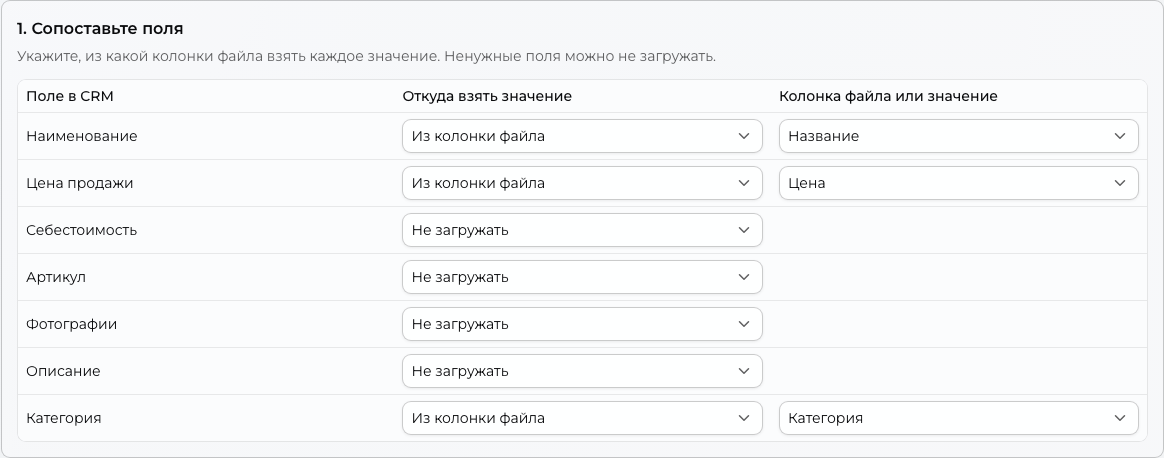
- For CSV, under “Import configuration”, match file columns to CRM fields. Skip fields you do not need; common values can be entered once for all rows. Use links for photos.
- If rows with the same name in one category should become variants of one product, enable product merging and specify the differences, such as weight, size, or color.
- Under “Review before saving”, correct the entries and check photos. Wait for linked photos to finish loading, then click “Save to catalog”.
The catalog does not change until the last step.
CSV example
Download an example with two products. The product names and prices are examples for a store using RUB; replace them before uploading your own catalog.
During configuration, map Name to the product name, Price to the selling price, and Category to the category. Skip the remaining fields and leave product merging disabled.
Before saving, check the result: Green tea priced at 250.00 and Ground coffee priced at 490.00 in Drinks. After saving, set stock in the store.
Format and limitations
In CSV, the first row must contain headers. The delimiter is detected automatically: comma, semicolon, tab, or “|”. YML skips configuration and imports nested categories, article codes, photos, weight, and dimensions; cost price is set equal to the price.
Prices retain the fractional precision of the store currency. Negative amounts, excess significant decimal places, and invalid prices appear in the error report; CRM skips those rows. The export currency must match the store currency: import does not convert amounts at an exchange rate.
In CSV, use a dot or comma for the decimal part and spaces to separate thousands. For example, 1 234,50 means 1234 rubles and 50 kopecks when the store currency is RUB. CRM treats a single dot or comma as the decimal separator.
Check prices, categories, and stock
In CSV, skipping the price field during import configuration sets the product price to 0. If you map a price column, enter a numeric value; use 0 for a free product. YML requires a price.
Without a category, a product goes to the uncategorized category, which buyers cannot see. A category named in CSV is created if it does not exist in CRM.
Imported products have quantity 0 in every store. Assign categories and set stock before offering products to buyers.