Account, installation, and notifications
Sign in to place orders, save addresses, and connect bonus points. Without signing in, you can browse the catalog and search for products.
Profile
Open your profile using the button in the home screen header. The card with your name opens Personal data; My orders, Delivery addresses, and bonus points, if enabled by the store, are nearby. Find store contacts under Support; this item appears if the owner added contact details.
Choose your sales area, interface language, and theme in the profile. The language on first opening depends on Telegram or your browser; after sign-in, your choice is saved to your account. System theme follows your device; Light and Dark are manual choices. The app does not inherit Telegram's theme.
Sign-in and registration
In Sign in or sign up, enter your email, click Get code, enter the six-digit code from the email, and click Sign in. A new account is created after code confirmation. If the code expires or stops working after incorrect attempts, request a new one; the screen shows the wait before another request. On your first code sign-in, you receive an email with an automatically generated password.
Receive informational store mailings is selected by default and applies only when creating an account. Later, change your subscription in notification settings.
Other sign-in methods:
- Sign in with password uses your email and password. Forgot password? sends a reset code; requesting a new code invalidates the previous one. A new password must contain at least 8 characters.
- Telegram, VK ID, and Yandex: select an available button above the form. For Telegram, start the store bot and return to the app. If Telegram does not open, click Telegram didn't open? Open the link. If confirmation expires, start sign-in again.
After signing in from a product card, you return to the same product. The sales area selected before sign-in replaces the one saved in your profile, including when signing in through VK ID or Yandex. Closing the sign-in form returns you to the product.
In the Telegram Mini App, the app running inside Telegram, sign-in uses your Telegram account. Passwords, Active sessions, Sign out, Telegram linking, and push notifications are unavailable there. To manage them, open the store link in a browser and sign in using the Telegram button.
Personal details and sign-in methods
Open Profile → your name card → Personal data to change your first name, last name, phone, or email. Confirm a new email address with the code sent to it.
Change password requires the current password and ends sessions on other devices. If you have no password of your own, for example after using only an external sign-in service, use Set password.
When you sign in or link a service, the app fills in empty first name, last name, and phone fields if the service supplies them. Values you edited or cleared manually are preserved. Profile details are filled in at checkout until you edit the recipient's details in the order itself.
Birthday discount example
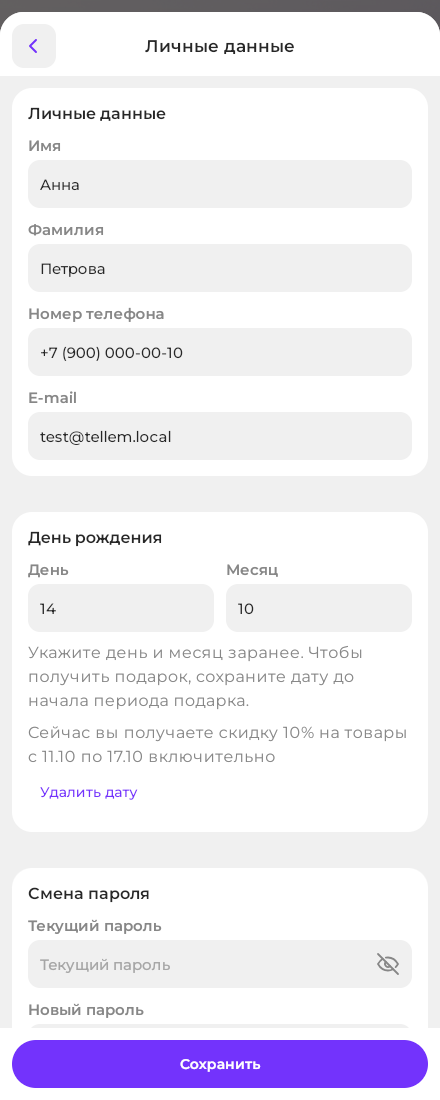
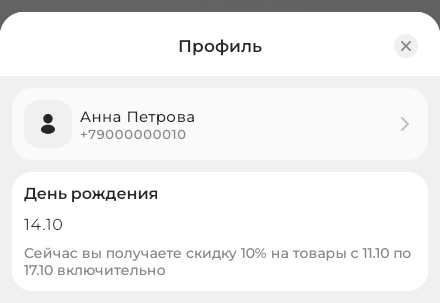
In Personal data, choose the day and month of your birthday, without the year, and click Save. Remove date clears both fields; save that change too. You can enter your birthday even if the store offers no gift. If a gift is available, its amount and validity period appear next to the date and on the profile card.
For a discount, save the date before the promotion period begins; for gift points, before the birthday starts. Saving it later does not unlock a gift whose period has begun. Bonus points require a connected bonus account; you can connect it on the birthday itself if you saved the date in advance.
The screenshots show an example: a 10% discount applies for 3 days before, on the birthday, and 3 days after, or 7 days in total. Your store's terms may differ.
Screenshots show the Russian interface.
Linking and merging accounts
Sign-in methods are at the bottom of the profile. Unlink is available only if another sign-in method remains: your own password or a linked service.
Merging cannot be undone
If the service is linked to another Tellem account, the app offers Merge accounts. Orders, bonus points, addresses, and favorites move to the selected account.
A notification channel disabled in either account stays disabled if at least one enabled channel remains after merging. Otherwise, the selected account's channels are kept. Check notification settings after merging.
Addresses and bonus points
Save an address under Delivery addresses to select it at checkout.
If the store has enabled its bonus program and you do not have a bonus account yet, Join the bonus program opens after sign-in. Check or enter your phone number in +7 format and tap Register. The number is saved to your profile; you cannot use another customer's number. You can close the window with the close icon and return to registration through Connect bonus system in your profile.
Points start accumulating after you connect the account; welcome points, if offered by the store, are awarded when you connect. Their amount appears in the invitation and registration card. After registration, the card shows your balance and nearest expiry date. Open Bonus points to check the rules, validity, and history.
Active sessions
Open Active sessions to check which devices are signed in. After confirmation, Log out of other devices ends sessions on the other devices; the current device stays signed in.
Installation
The installed app appears on your home screen and opens in a separate window. Select Install app in your profile; sign-in is not required.
In a browser that supports installation, select Install app in your profile. This item appears when the browser is ready to offer installation and opens the system dialog. If it is absent after you close the dialog, reload the page.
Open the store in Safari: Share → Add to Home Screen. Install app in the profile shows these instructions.
The installation option is absent inside Telegram. Open the store link in an external browser and follow the instructions for your device.
The installation option is absent in an already installed app and in browsers without installation support.
Where to send
Connect Telegram, VK, and email under Profile → Notifications → Where to send. See connecting channels, disabling messages, and managing mailings.
Push notifications
Push notifications report order statuses on your device. See enabling push and the restrictions on iPhone and iPad.
For store owners
App name and icon, support contacts, and profile information sections: store settings. Birthday gifts: promotions and bonus rules. For Telegram sign-in, connect a bot.