Categories and products
Create categories and products, then set stock. To upload a file, use catalog import.
Where: Catalog → Categories, Catalog → Products, Catalog → Archive.
Create categories
- In Catalog → Categories, click “Create”, enter a name, and add an image if needed.
- For a nested category, select “Parent category”; without one, the category is at the top level. Selecting a category before creation makes it the parent.
- Save. Drag categories to change their order; drop one onto another to nest it.
Use a square image up to 10 MB. “View products” opens the selected category's products; “Remove from category” moves them to the uncategorized category.
Buyers cannot see the uncategorized category, so assign products a category. A category is also hidden if the chain has no active products in it, or no available products when zero-stock items are hidden.
Deleting a category removes its products from sale
Deleting a category also deletes its subcategories. Their products are archived and become uncategorized. To restore them for buyers, publish the products from the archive and assign a new category.
Create a product
In Catalog → Products → Create, choose the appropriate method:
| Method | When to use it |
|---|---|
| “Create single” | A separate product without a color, size, or other variant selector |
| “Create variants” | Variants of one product differ by color, size, price, article code, or photo |
| “Add from iiko” | The product must be sent to iiko; an integration is required |
For a simple product, enter a category and sale price under “Main”. You can add up to 6 photos of up to 10 MB each; a 1:1 ratio is recommended. Buyers see the product's characteristics in its card. Set quantities by store under “Assortment”; CRM offers to configure zero quantities on the first save.
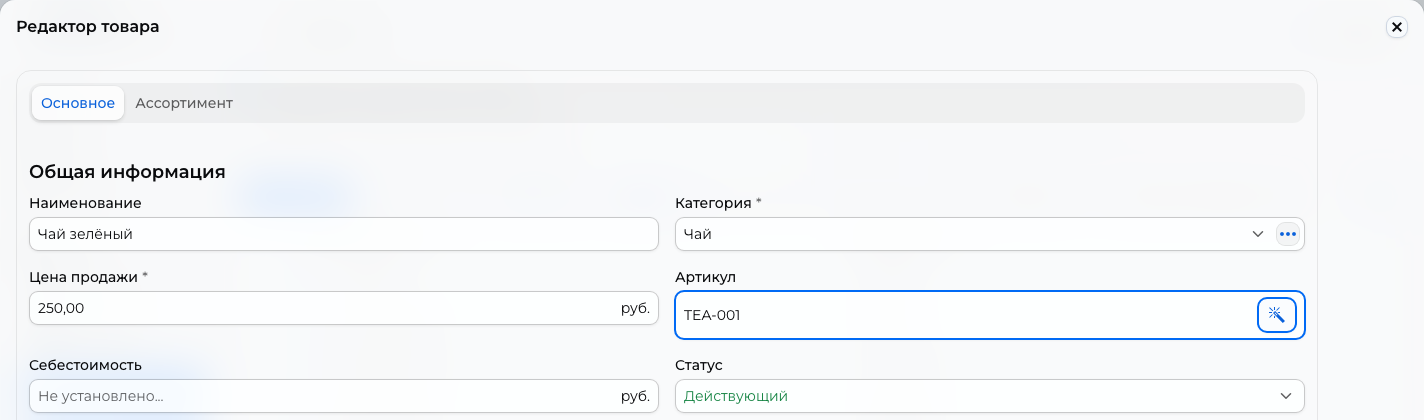
Enter prices in the store currency with its allowed number of decimal places. For example, a ruble price can be 79.90. CRM rejects excess significant decimal places when saving a price.
For a product with variants, add at least one variative attribute and set each variant's price, article code, and photo. Attribute combinations must be unique. See Combining two products by color for an example of a color selector and merging existing products.
For iiko products, CRM creates variants from the menu sizes. Manage those sizes in iiko; you cannot add, delete, or copy these variants manually in CRM.
If using carriers, enter the weight in grams. It affects delivery calculations; length, width, and height do not. These fields are in the variant record. For a simple product, open it with “Edit” in “Display products list” mode.
Change or remove products
Select rows and the required action under “Actions”. Check the whole selection before changing price, quantity, or category. When duplicating products, photos are copied only with “Product photos” enabled.
A product used in an order cannot be deleted from the regular list; archive it instead. Archiving hides it regardless of stock. See Inventory for other ways to remove a product temporarily.
In Catalog → Archive, “Publish” restores a product. Deletion from the archive is available if the product is not in an unfinished order.