iiko
Connect iiko to send orders to the checkout, select tables by QR code, and hide unavailable dishes.
Open Integrations → iiko.
What you need in iiko
- The restaurant's API key, an access key from iikoWeb for the required organizations.
- App ID and App Secret, the connection identifier and secret supplied by the Tellem team; the CRM field for App Secret is Client secret.
- A published menu with prices, an active iikoFront terminal group, and order types for dine-in and pickup.
- A payment type for each online payment method; dining areas and tables if you need table QR codes.
Who provides the credentials
Obtain the API key from iiko or your service partner. The Tellem team provides App ID and App Secret. Restaurants do not need to register an application on the iiko developer portal. Keep the credentials secret.
Ask your iiko partner to prepare the published menu with prices; this connection does not require a separate external menu.
Before starting the wizard, create stores, enable In establishment and/or Pickup, and the required payments. For online payments, connect a payment provider first.
What an iiko organization and terminal mean
A Tellem store is a location where customers place orders; stores and chains appear in the wizard's Sales area column.
An iiko organization is the venue that owns the menu, payment types, and checkout settings. A terminal in the wizard means the iikoFront terminal group receiving orders. Confirm it with the iiko administrator: several physical checkouts can belong to one group.
Connection
Click Add integration. Complete the five steps using Next, which validates the current step. Back returns to the previous step; OK on the last step saves the connection.
The screenshots show a demonstration CRM in Russian. Use your own venues and credentials; secret field values are hidden.
1. API credentials
Enter a connection name, API key, App ID, and Client secret. For several restaurants, first confirm with your iiko partner that the key can access all required organizations.
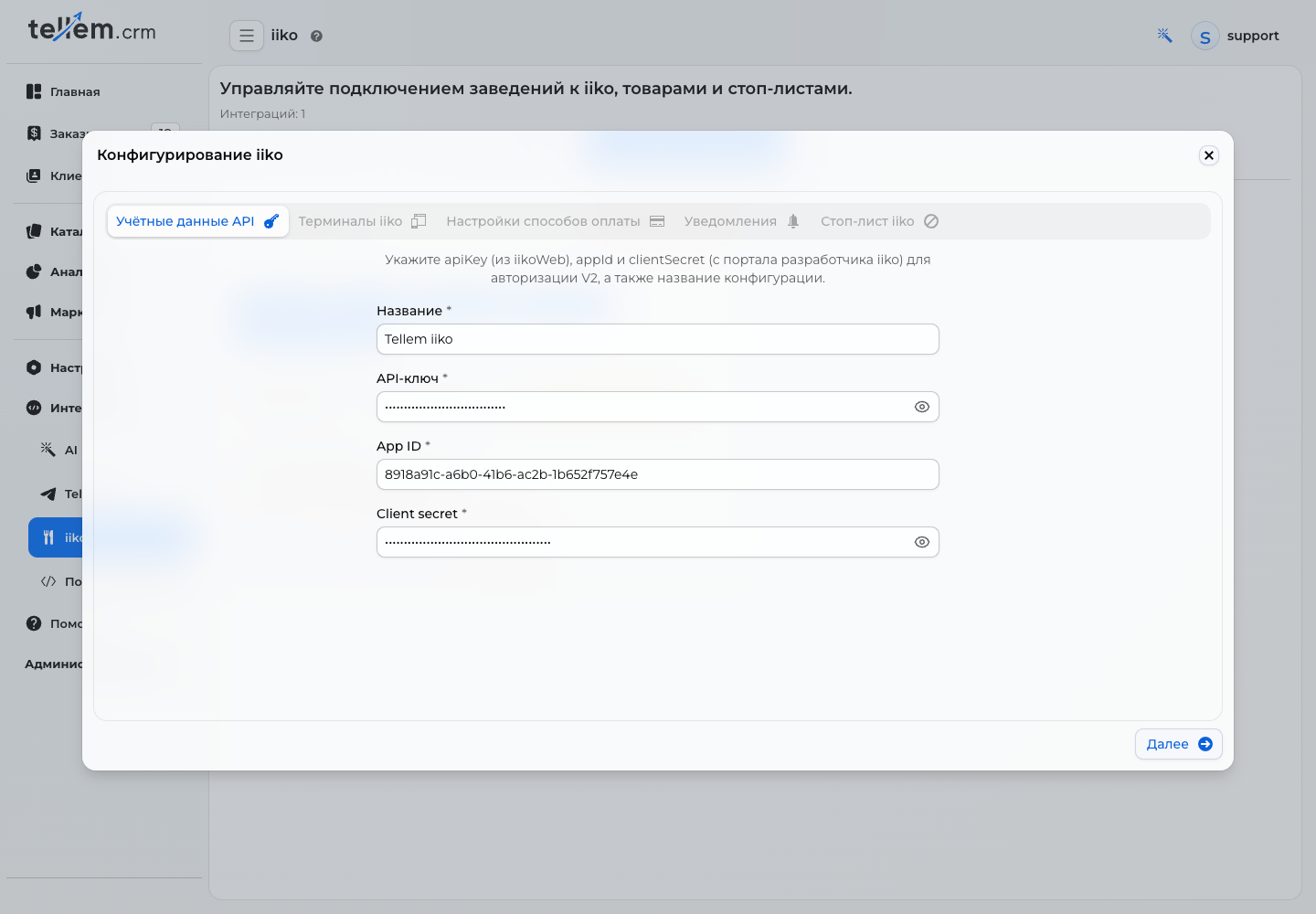
Click Next. If the check fails, check credentials and access. If a restaurant is missing, ask your iiko partner to check the key's access to its organization.
2. iiko terminals
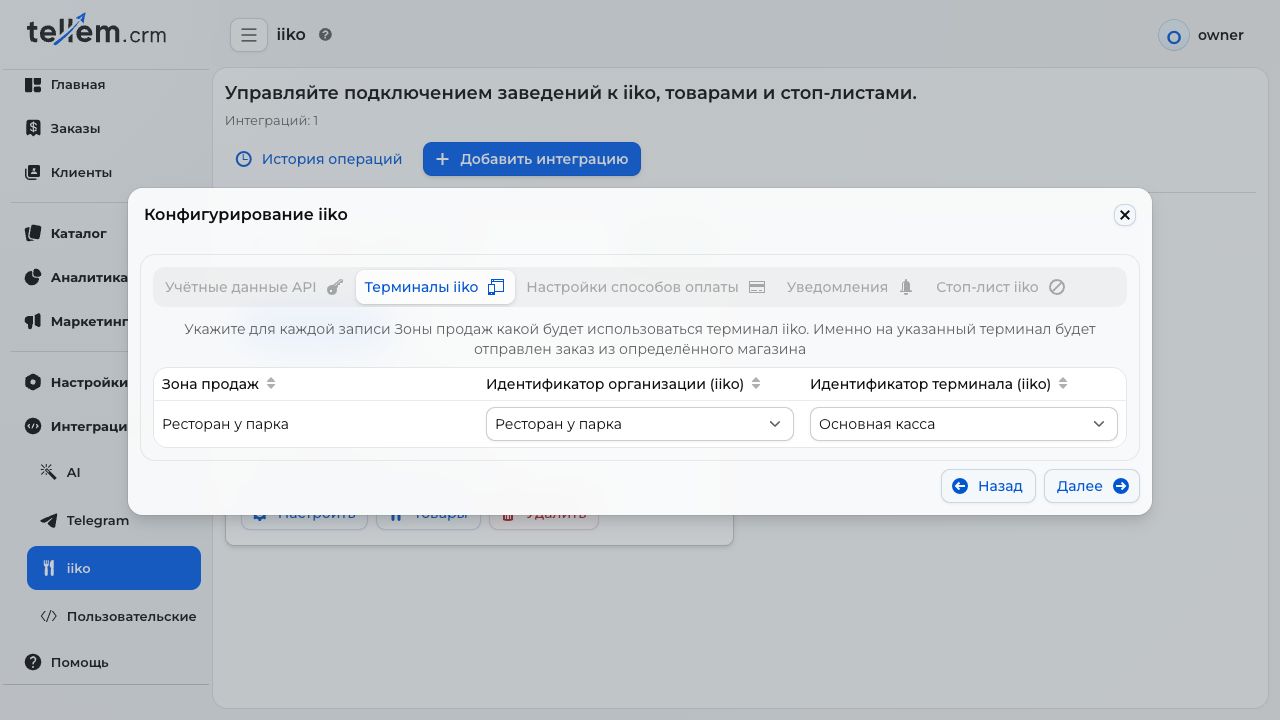
For each Sales area row, select the organization and its checkout group under Organization ID (iiko) and Terminal ID (iiko). The lists show names; you do not enter identifiers manually.
| Operating setup | Mapping |
|---|---|
| One restaurant handles orders together | Store → restaurant organization → its group |
| Independent restaurants | A separate store for each → its organization and group |
| Two storefronts share a checkout | Both → one organization and group; their stop list is shared |
| Separate groups for dine-in and pickup | Separate Tellem stores with matching mappings; agree on the setup with the Tellem team |
Mapping limits
Complete every row shown in the wizard. Each store has one organization and one group; orders are not distributed by checkout or fulfillment method. A second configuration does not add another terminal to the store.
3. Payment method settings
Map each online payment by link method to a Payment type from iiko for the corresponding store's organization.
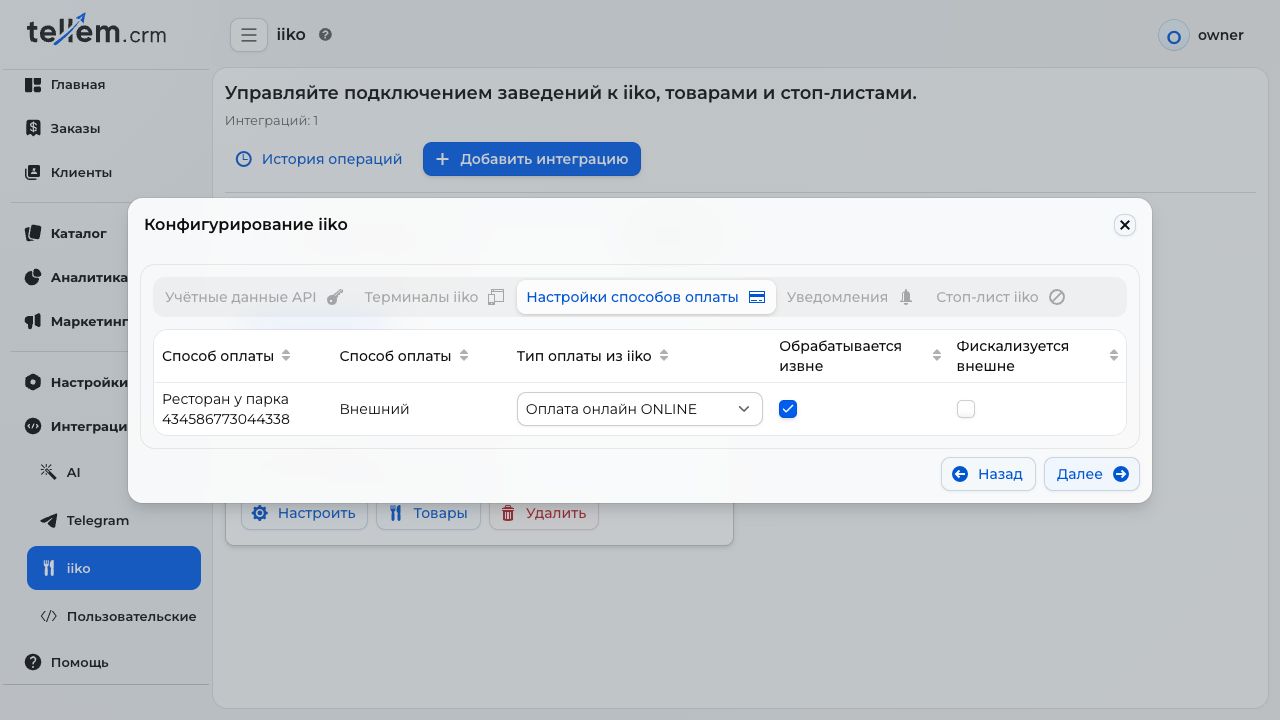
Agree on two options with the person responsible for the checkout:
- Processed externally: an external system has already collected payment.
- Fiscalized externally: an external system also issues the fiscal receipt. Leave this off if iiko issues it.
With payment on receipt only, the table is empty: continue, and the cashier will collect payment. Any online method added later needs its own mapping.
4. Notifications
Add responsible staff, stores, and channels using the notification recipient guide. These are the same settings as Settings → Notifications → iiko errors.
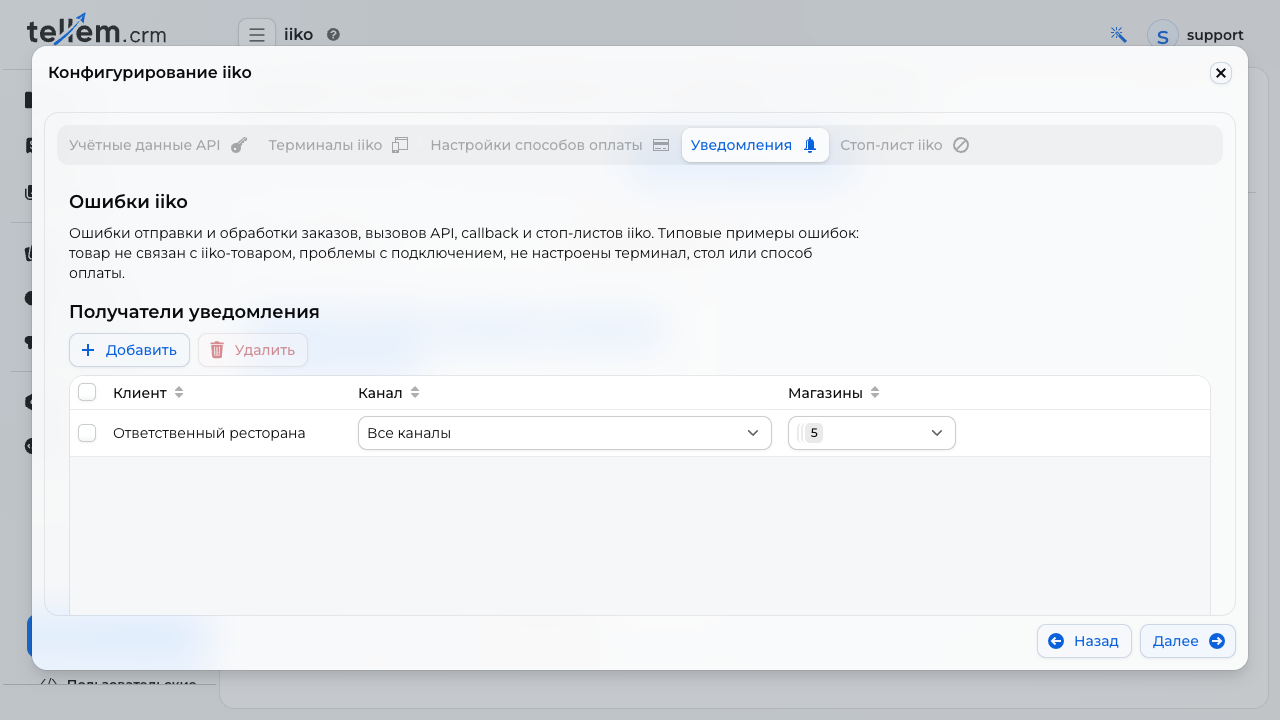
You can continue without recipients, but nobody will receive error messages.
5. iiko stop list and saving
Click OK. CRM validates all steps and returns to any incomplete step. For a first connection, the stop list status appears after saving.
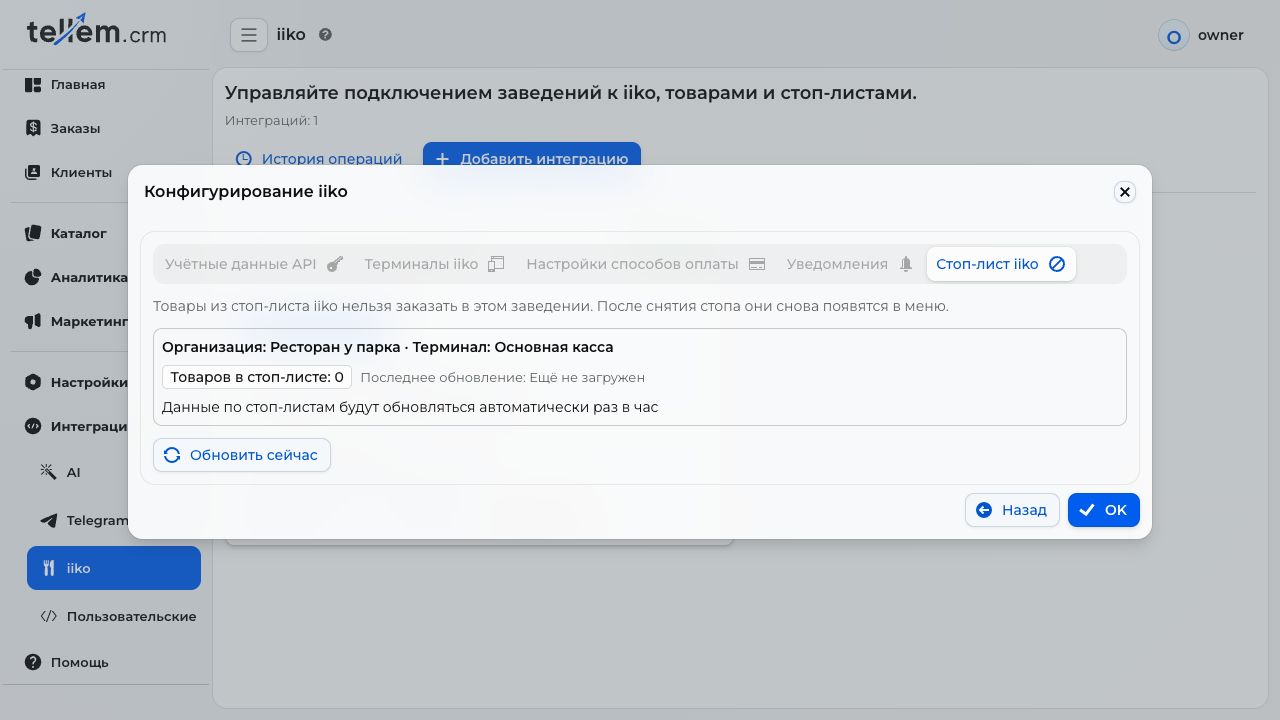
Open the saved connection using Configure and continue to the last step. Check each organization, terminal, and successful update time. Not loaded yet does not confirm an empty stop list. Update now queues a request; reopen the connection to see its result.
Hourly mode means instant updates are not connected; see how stop lists work.
Check before the first production order
For each store → organization → terminal mapping, place an agreed test order and check:
- The receiving checkout, items, and total.
- Payment collected by the cashier on receipt, or the correct online payment type.
- Receipt issuance as agreed and the status returning to CRM.
- The current stop list and error recipients for the required store.
New stores or online methods are not connected automatically: open Configure and complete new rows. The card shows incomplete setup and stop list update problems. Deleting the configuration stops order transfer for its stores.
Products
Every order item must be linked to iiko. One unlinked product blocks the entire order. You can add products from the menu or link your existing catalog.
For one item, open Catalog → Products → Create → Add from iiko and choose a dish. Review the copied name, price, and properties. For sizes and extras, run a full menu import. Prices do not synchronize in the background; orders use Tellem prices.
Add or update a restaurant menu
Import enables product visibility
New products with positive stock are available to customers immediately. Repeating the import enables Show in catalog for previously hidden cards too; manual archive settings and sale status under Inventory are preserved. Check that the menu is ready for sale before importing. Manually edited prices apply until the next import.
- In Integrations → iiko, find the restaurant on the connection card and click Import products in its row.
- Choose Entire menu. The selected restaurant's import starts when the results window opens; there is no separate start action.
- Review created and updated products, skipped items, errors, and warnings in the report. Find a product by name or article code and select its row to preview the photo, price, stock, extras, and sizes on the right. Use the button that opens the product card to check it in the catalog.
CRM adds missing products and categories, including dishes with sizes and supported extras. Categories with the same name are reused. Repeating the import updates prices, photos, sizes, extras, and availability without duplicates. Prices retain the fractional precision of the store currency. Existing card names, descriptions, and categories are preserved. If iiko has no photos or the complete set cannot be downloaded, the existing CRM card keeps its photos. Unsupported dishes and items with invalid prices are skipped; check the report for the reason.
Importing updates stock for products added from the menu separately for each terminal. A positive iiko limit becomes the CRM quantity without its fractional part, a stop gives zero, and no limit gives a nominal quantity. A nominal quantity does not confirm the physical number of portions. Size stock is tracked separately. Repeating the import replaces the quantity rather than adding to it. Previously linked products keep their manually managed stock.
If a stock warning appears, CRM saves product cards but creates no new inventory and preserves previous quantities for affected terminals. Repeat the import after the connection recovers. A photo error does not prevent saving the product.
Closing the window stops further processing while preserving completed work. Running it again adds the remainder without duplicates. The summary shows processed sizes and extras; after a stop or errors, review the unprocessed part.
Link existing products
In the restaurant row, click Import products → By article code. Linking starts when the results window opens.
Each product or variant's article code must exactly match its iiko code, including leading zeros, case, and spaces. The whole catalog is checked, including hidden and archived items. Dishes with sizes cannot be linked this way: use menu import.
Linking preserves product cards, prices, photos, stock, and history; no new products are created. Review linked and skipped items in the report. Correct empty or ambiguous codes and other reported causes, then repeat: existing links remain. If menu retrieval fails, the catalog is unchanged. To load extras for linked products, run a full import, allowing for its effect on prices and product visibility.
Sizes and extras
A full import creates dish sizes as product variants with their own prices and stock. Change the size selection in iiko and repeat the import: removed sizes become unavailable, while returning sizes keep their existing cards. You cannot create or delete these variants manually in CRM.
In the product card's Modifiers section, check extras, groups, required choices, limits, and free quantities. This section shows data from the last full import; change it in iiko and import the menu again. Customers cannot order a linked dish before the first full import. Extras do not create separate catalog products.
Customers choose sizes and extras in the product card and cart. CRM orders show the selected size, extras, and their quantities. Promotions and birthday discounts reduce the dish or selected size price; extras are added without that discount.
Orders
Mapped stores send orders without a separate custom integration. In establishment and Pickup are supported. In iikoFront, the number is T followed by the CRM number, with Tellem as the source; customer contacts and comments are included.
| Payment | When the order is sent | Further processing |
|---|---|---|
| On receipt | Immediately as New, without payment | The cashier collects payment and closes the order |
| Online by link | After Paid | Closes automatically; payment mapping is required |
An order closed in iiko becomes Completed in CRM; a canceled or deleted one becomes Canceled. CRM also checks statuses if an event is delayed; closing again does not award bonuses twice.
If iiko accepted an order but reported an error, its status becomes Pending processing, or Getting ready with one open warehouse. The reason appears in history and a notification. Check the order at the checkout before resending; a transfer error does not mean the customer needs to pay again.
Tables and QR codes
Saving the connection adds an optional Table field to mapped stores' In establishment methods, including those created later.
- In Catalog → Stores, select the venue and click Print QR code.
- Select a table on the plan or its card. QR for the entire venue restores the general code.
- Print the code and scan it with a phone camera: it must open the correct venue and table.
CRM loads dining areas and tables from iiko; Refresh tables loads them again. If no tables appear, check the terminal mapping and tables. Configure tables adds the field to the selected store if it is missing.
Customer actions are described in Checkout.
Stop lists
A stop list contains dishes whose sale is restricted by the checkout. At zero or lower quantity, CRM hides the dish in every store using that terminal, even if showing products with zero stock is enabled. A positive quantity limits purchases at checkout. A size-specific stop applies to that size; a general dish stop applies to all its sizes. Hiding individual extras through the stop list is not supported.
After a stop is removed, CRM availability settings apply again: manual disabling, warehouse stock, and reservations. A stop list update alone does not overwrite warehouse stock; products added from the menu receive stock updates during import.
Updates arrive through iiko events and hourly checks. If iiko already has another event recipient, Tellem preserves it and uses hourly checks. On failure, the last successful list stays in effect. For a manual check, open the last setup step.
CRM checks the cart before creating an order and payment link. If a dish is unavailable, the customer must remove it or reduce its quantity; if the check fails, they must try checkout later.
If something does not work
Open the instructions for the error cause. Under Integrations → iiko → Operation history, find the record by order and time. A successful operation does not confirm that the order reached the checkout: check with the cashier before resending.