Creating a Telegram bot
Create a bot for your store or venue so customers can open the catalog, sign in to the app, and receive notifications.
You need the owner's Telegram account, a customer-facing name, and an available username, the name used in search and the bot link. Have access to your CRM ready for the next step.
Already have a bot?
You do not need another one. Using the owner's account, open @BotFather, send /mybots, select your bot, and click API Token to copy its current token. Then connect it to the CRM. You do not need to delete a working bot or regenerate its token to configure it again.
1. Open BotFather
- Sign in to Telegram with the account that should own the bot.
- Open @BotFather using the link or Telegram search.
- Check the exact username @BotFather and the verification badge. Open the chat and click Start, if shown.
Screenshots show the Russian interface.
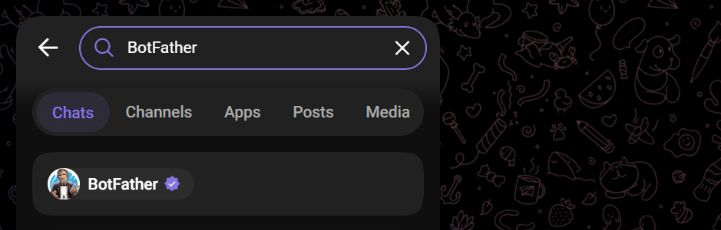
View the full-size screenshot.
2. Choose a name and username
- Send
/newbotto BotFather. - When it says “Please choose a name for your bot”, send the name customers will see. For example: My Store | Catalog and Orders. The display name can use your customers' language.
- Answer the next question with an available username, such as my_shop_order_bot. Do not enter
@.
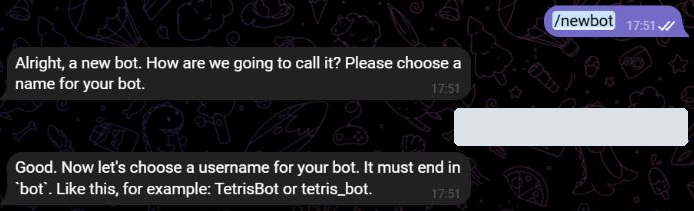
View the full-size screenshot.
The username is used for search and links such as https://t.me/my_shop_order_bot. It must contain 5 to 32 characters: Latin letters, digits, and underscores, and end in bot. Try another name if it is taken. These are Telegram's rules.
3. Copy the token
After creating the bot, BotFather sends “Done! Congratulations on your new bot”, a link to the bot, and its access token.
- Find the line below “Use this token to access the HTTP API”.
- Copy the entire token: the digits, colon, and every character after it, without spaces or line breaks.
- Keep the token for the Bot token field when connecting the CRM. A
t.me/…link, username, or display name does not work in this field.
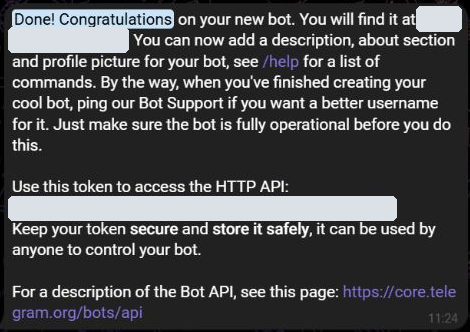
View the full-size screenshot.
Treat the token like a password
It allows control of the bot. Do not publish it in chats, instructions, or screenshots. The examples here hide the token and the owner's details.
4. Add an avatar and description
This optional step helps customers recognize your store. In the BotFather chat, send a command, select your new bot, and follow the prompts:
/setuserpic— upload a logo or another image for the bot's avatar./setdescription— explain what customers can do with the bot. For example: “My Store catalog and orders. Press Start to begin.”
The description appears before the bot is started. The welcome message shown after Start is configured separately in the CRM.
Next: connect the bot to the CRM, set up the welcome message, and check that the catalog opens.