Appearance
Configure the application's home screen and store colors. Buyers see saved changes without a separate publication step.
Where: Catalog → Design.
Home screen
- Open “Main page” and select a store for the preview if there are several.
- Click “Add a section” and choose a product collection, category collection, or banner. For a regular promotion, use “Upper sales banner”; a personal birthday discount cannot be added to it.
- Select the chains where the block should appear in “Stores”. You can then add products from their assortments. Enter a name and content; also add an image for a banner.
- Under “Content and order”, reorder blocks with the arrows. Top banners stay first and the catalog of top-level categories stays last. The arrows do not reorder items within the top banner.
- Check the result in the phone preview. The pencil opens a block's settings; × deletes it after confirmation.
Example: product collections
The example uses demo products and shows the Russian interface. The GIF has English captions.
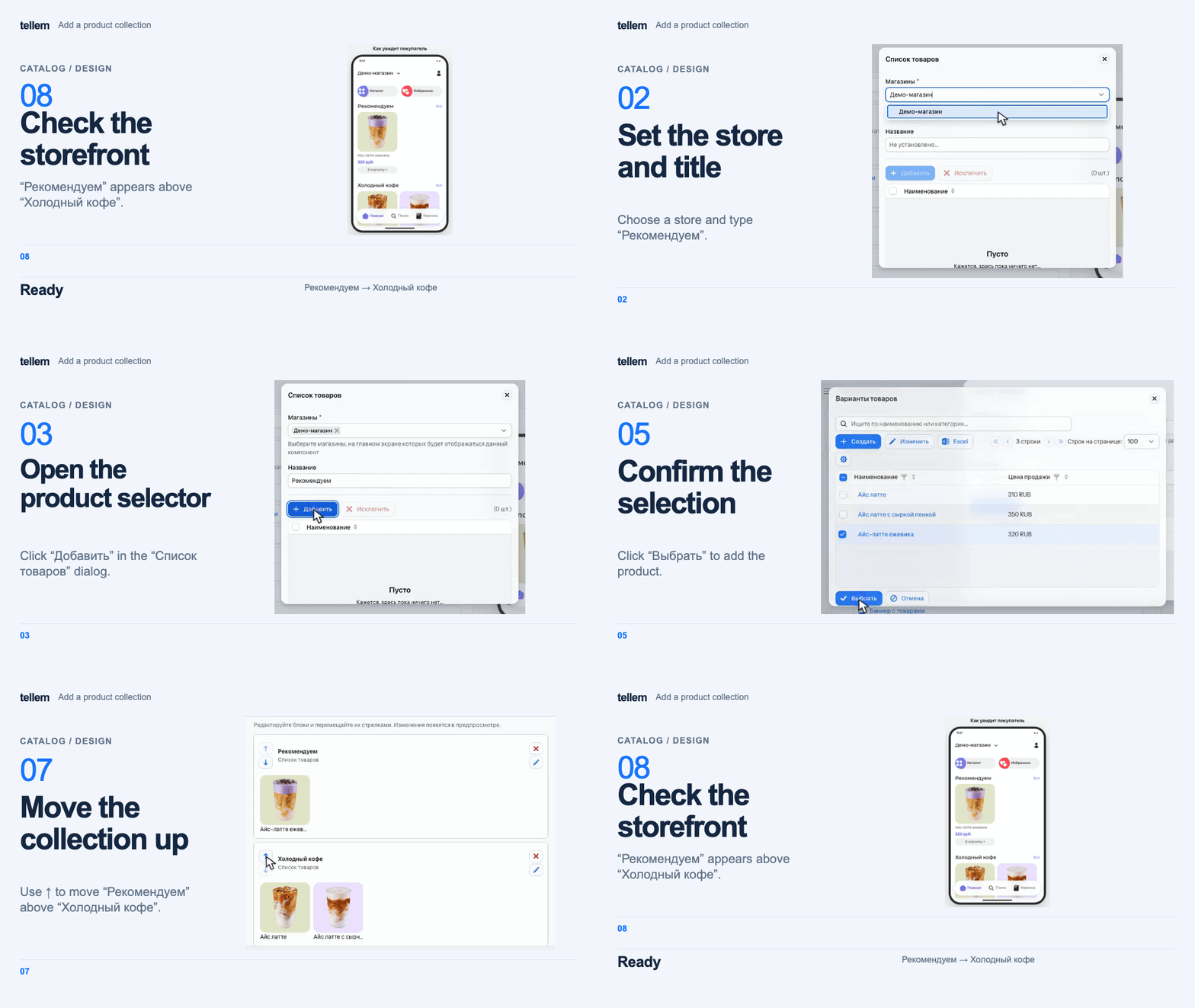
Without a name, a block is visible in the preview but hidden from buyers. A top promotion banner takes its name from the promotion. With the multilingual editor enabled, enter a name for each language.
Images have a 10 MB limit. Recommended proportions are 2:3 for top banners, for example 600×900, and 2:1 for feed banners, for example 1200×600. Small GIF files load faster.
Color scheme
- Open “Color scheme” and select “Light” or “Dark”.
- Set colors and check text, buttons, and messages in the preview. Each color is saved as soon as you select it.
- To reset the open theme, click “Make colors by default” and confirm.
The preview uses a product with a photo; if none exists, add one to the catalog. Preview availability is an example. Buyers choose a theme in their application profile.