Stores
Create sales locations, enable fulfillment and payment methods, then share a store link or QR code.
Open Catalog → Stores.
Store or chain
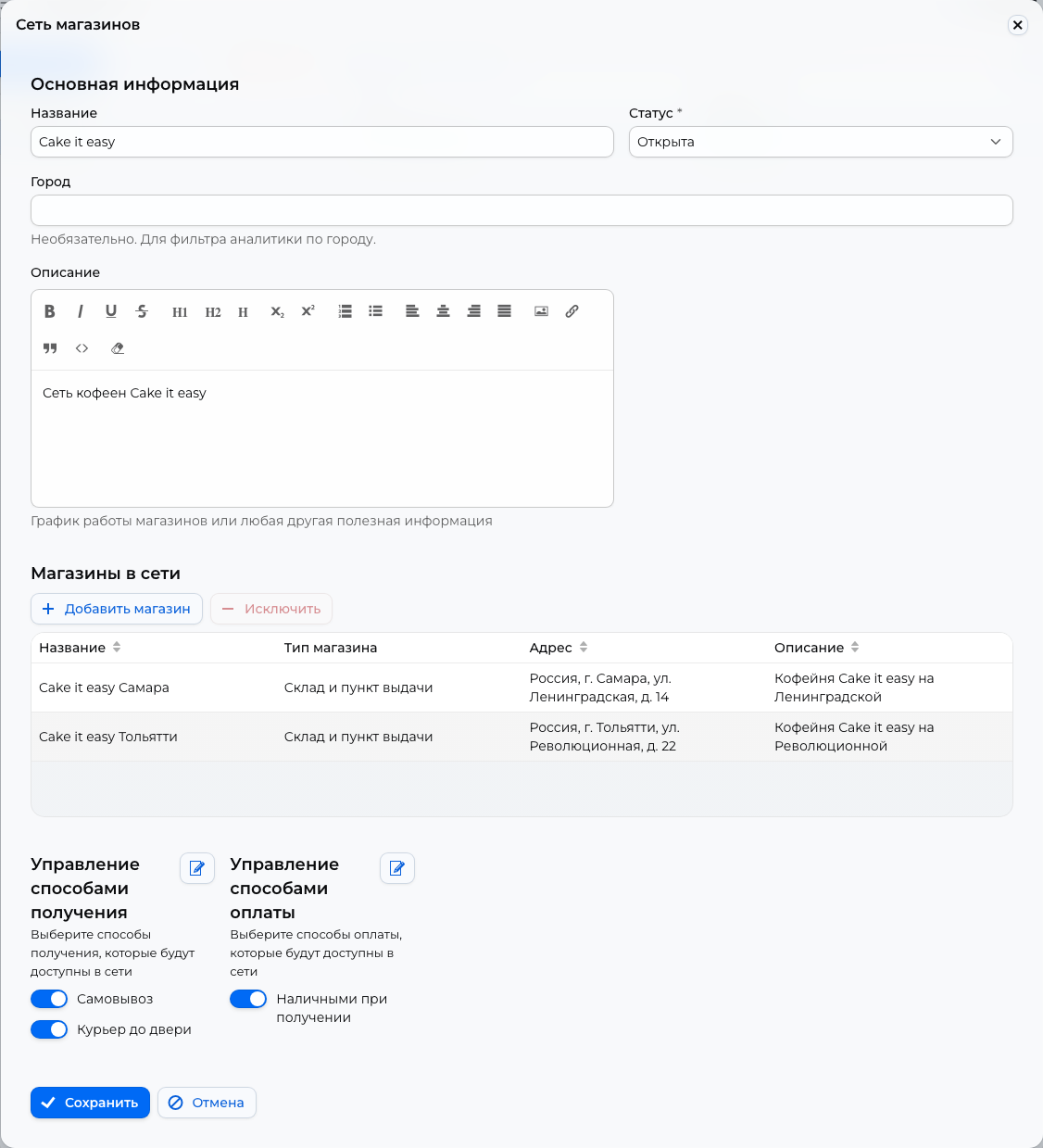
Click Create, or Actions → Create on a phone. Choose Single store for one location or Store chain for locations sharing fulfillment and payment methods.
- Enter the store's name, city, and street. Its warehouse and pickup point are created with it; add products through Inventory.
- Add at least one store to a chain. Add store selects an existing one; Create in the selection window adds a new one. A store can belong to several chains; its name must be unique within a chain.
- Temporarily closed keeps the chain in the customer's list but hides its products. Store chain closure message is not displayed in the app. Archived hides the entire chain.
Fulfillment methods
Enable the required methods in Manage fulfillment methods. Create missing ones under Settings → Delivery.
Method restrictions
Customers cannot check out without an enabled method. Online is incompatible with other methods: enabling one disables the other. A chain using Online can contain only one store.
Payment methods
Under Manage payment methods, enable services created in Settings → Payments. New chains have Cash on receipt and Card on receipt enabled. Two methods of the same type, such as two YooKassa configurations, cannot be enabled together.
QR code and link
Select a store or chain row and click Print QR code. Check Location in the print window. Print the code or click Copy link to share it on your website or social media. The link opens the selected store in a browser; Telegram is not required.
For an iiko store, you can create a QR code for a specific table.
Deletion
Stores or chains with orders cannot be deleted. For an individual store, first set quantities to zero or remove the rows under Catalog → Inventory. Deleting it also deletes its warehouse and pickup point.