Customer notifications
Connect order and bonus messages under Profile → Notifications. You can also check an order's status in My orders.
Where to send
Where to send shows the Telegram, VK, and email channels offered by the store. Messages go to every enabled and available channel. A disabled channel is not replaced by another. Enable device push notifications separately.
A connected channel has a switch. If the store offers only one channel and it is already enabled, no switch appears. You cannot disable the last enabled channel: connect or enable another first. If none is enabled, follow Connect a channel….
To connect a channel, select the action in its row:
- Telegram: Connect, or Open bot if it has not been started. Start the store bot.
- VK: Connect to link your account, or Allow to grant message permission. Connect community messages.
- Email: Add if no address is set, or Verify. Personal data opens; the code goes to the address you entered. No switch appears until confirmation.
Signing in with an emailed code also confirms your address. For order emails, the store must configure email delivery and you must enable email under Where to send. This switch does not disable sign-in emails or emails sent manually by the store.
VK
Sign in or link VK
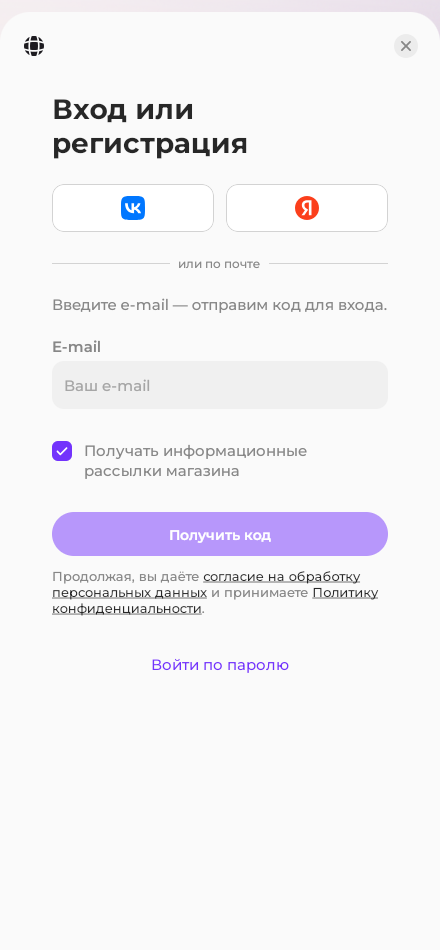
Choose VK ID on Sign in or sign up. If you already have a store account, sign in as usual first, then click Link next to VK in your profile or Connect under Profile → Notifications. This associates messages with your orders. If you connect from Notifications, you return to that screen afterwards.
Screenshots show the Russian interface.
Allow messages
- After sign-in or linking, allow messages using the VK button in VK notifications. Use the same VK account linked to the store.
- Wait for connection to finish. If permission is already granted, click Connect notifications.
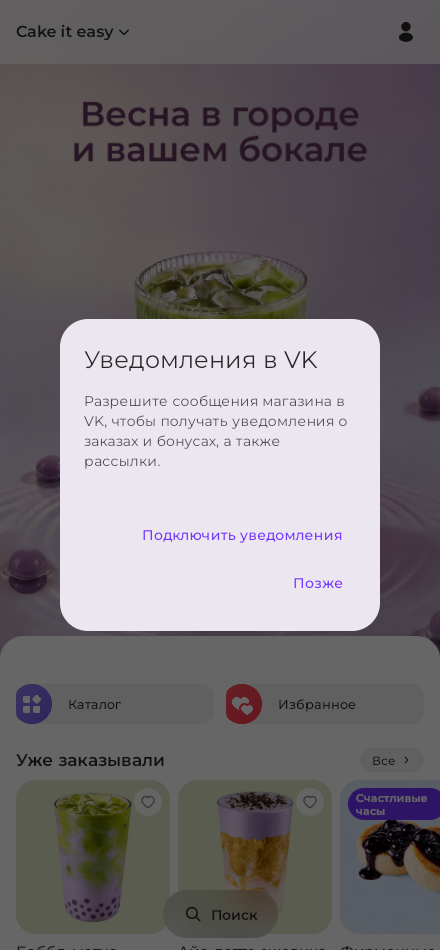
The permission covers private community messages about orders and bonus points, plus mailings if you enable them. It does not join the community or subscribe you to its posts.
Later closes the offer; sign-in and ordering remain available. Return using Allow in the VK row under Notifications, without signing in again.
If it does not work
| Message | What to do |
|---|---|
| A different VK account is open in the widget | Switch VK to the account linked to the store |
| VK widget unavailable | Click Retry or Open VK, allow messages in the community chat, then return to Connect notifications |
| Could not connect notifications | Try Connect notifications again; you do not need to grant permission again |
To stop messages, disable VK under Where to send or block messages in the community chat. VK ID sign-in and purchases remain available.
After you block messages in VK, the channel row updates on the next attempt to send a message and shows Allow. To resume delivery, click this button in the store app. Linking VK again or granting permission only in VK does not resume delivery.
Telegram
Click Telegram on the sign-in screen, Link next to Telegram in your profile, or Connect under Profile → Notifications. Press Start in the store bot and return to the app; its status updates. A stopped or blocked bot cannot send messages; click Open bot and start it.
Inside Telegram, your account connects when you open the store. If the bot has not been started, follow Tap Start in the bot chat.
Email
Connect and confirm email under Where to send. If you change your address in Personal data, confirm the new address using the emailed code.
Push notifications on your device
After signing in, open Profile → Notifications, enable Push notifications, and allow them in the browser prompt. They report order status changes on this device; tapping one opens the order. Mailings and bonus messages do not arrive by push.
If you see Blocked in browser settings, allow notifications in the browser or system settings. On iPhone and iPad, first add the app to your home screen; push is unavailable in a regular browser tab. If no push card appears, the browser or store does not support push.
Signing out disables push on this device; enable it again after your next sign-in. Log out of other devices stops push on the other devices until their next sign-in.
Order notifications and mailings
Mailings at the top of the screen controls informational store messages: news and useful information, rather than advertising. It does not control order or bonus messages, including bonus expiry reminders.
Mailings require Mailings to be enabled and at least one connected channel under Where to send. VK also requires permission for community messages. If several channels are enabled and available, mailings arrive in each.
For store owners
Connect a VK community or Telegram bot. Create informational messages under Mailings. CRM notification settings are for employees; customers connect channels in their app.