Telegram
Connect a bot so customers can sign in through Telegram and open your store inside it as a Mini App. The bot also sends customer messages and employee notifications.
Where: Integrations → Telegram.
You need your bot's token. If you do not have a bot or do not know where to find its token, start with creating a Telegram bot.
1. Connect the bot
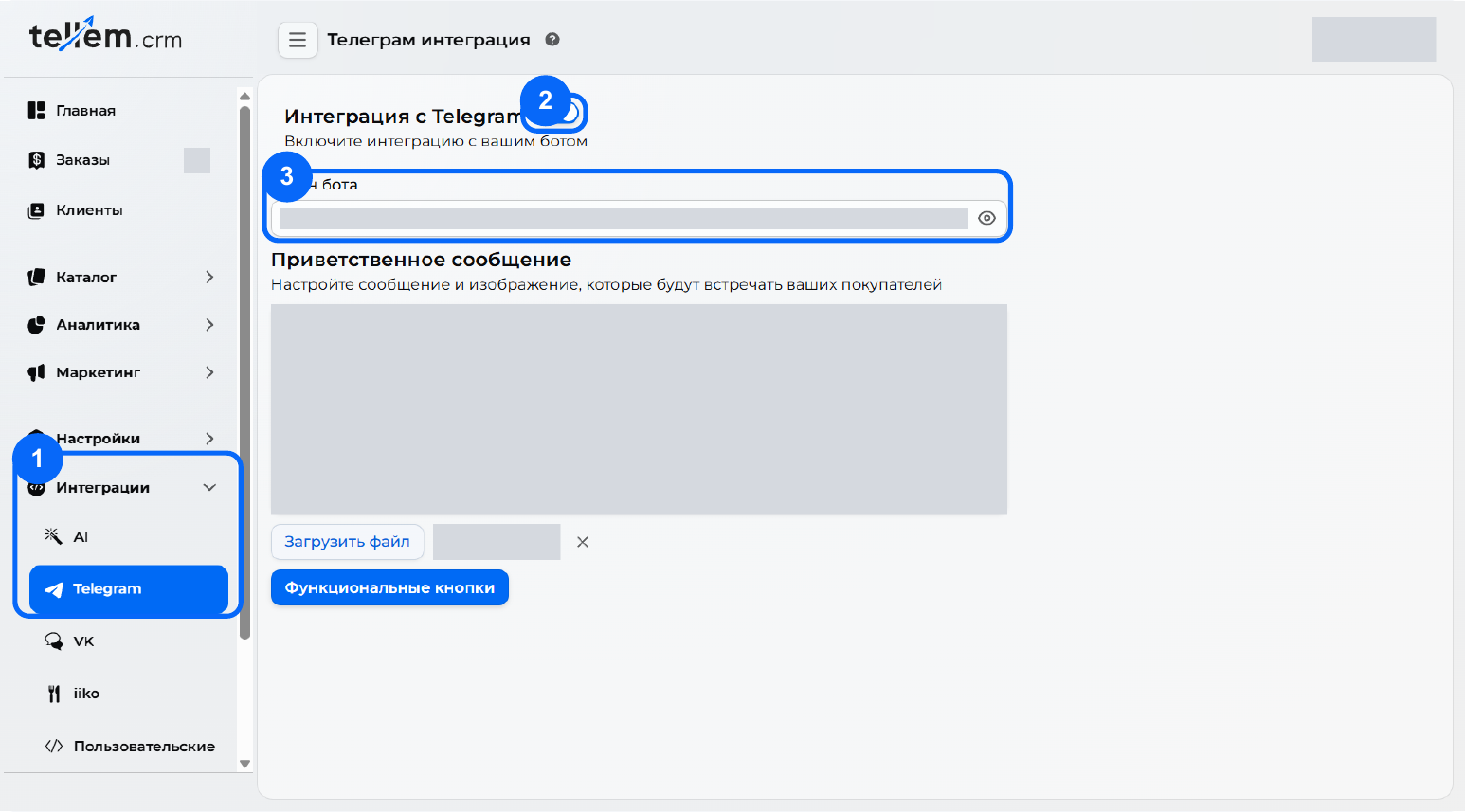
- Open Integrations → Telegram, marker 1 in the screenshot.
- Enable Telegram integration, marker 2.
- Paste the token from BotFather into Bot token, marker 3. Press Tab or click outside the field to finish editing.
Screenshots show the Russian interface.
View the full-size screenshot.
Treat the token like a password. There is no Save button on the main form; changes are saved after editing. Turning integration off stops the bot and disables Telegram sign-in.
Telegram sign-in and account linking need no separate setup. The Telegram button appears on the app's sign-in screen when the integration is enabled and the token is valid.
2. Write a welcome message
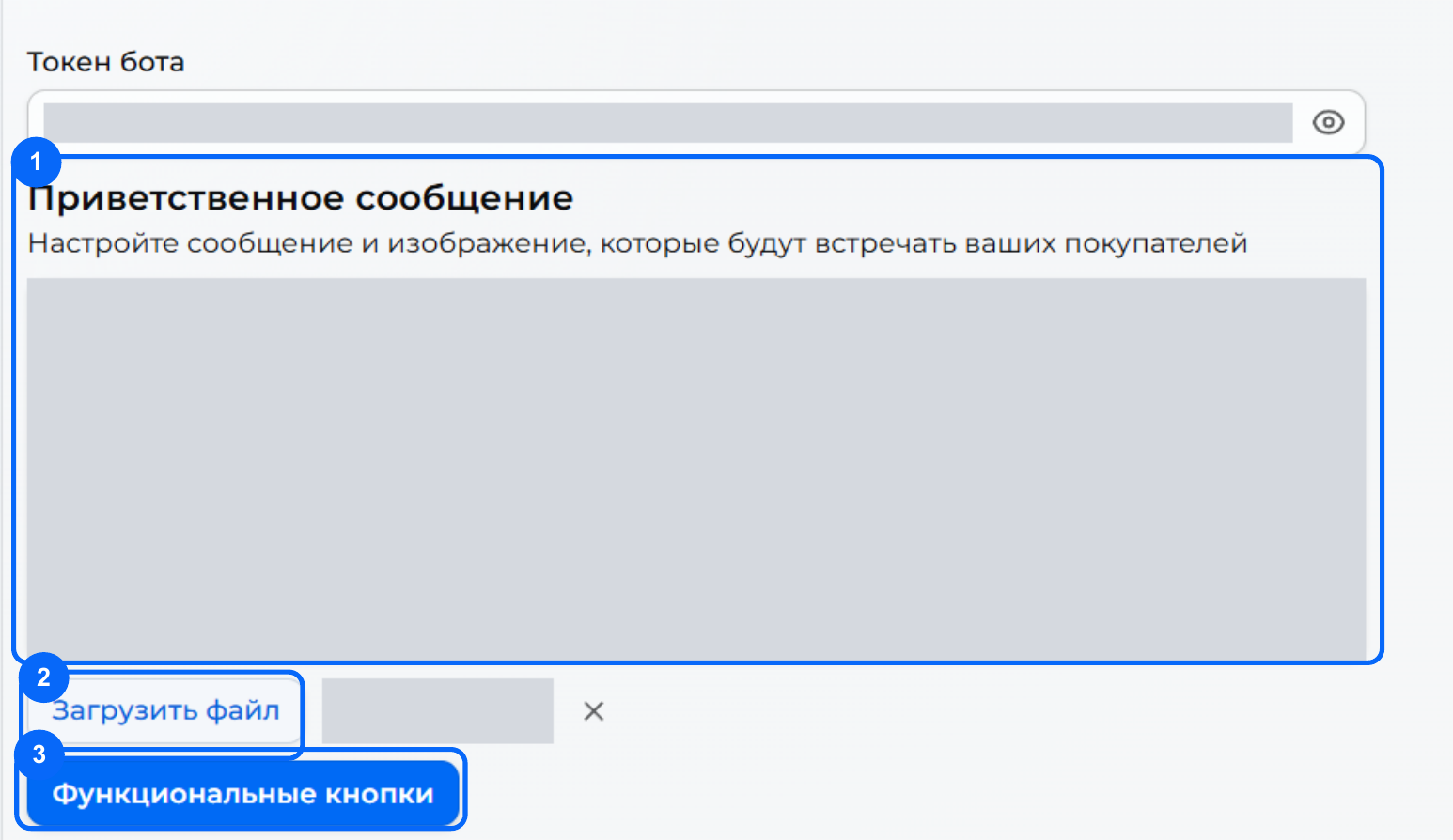
On the same screen, enter the text customers should receive after pressing Start or sending /start in Welcome message. While the text is empty, the bot replies “Welcome!”.
For example, replace “My Store” with your name:
Welcome to My Store!
Browse our catalog and place an order here.
Press the button below to start shopping.
View the full-size screenshot.
The bot adds a button based on the business type chosen in the first sign-in wizard: Open store for an offline store, Open catalog for an online store, or Open menu for a restaurant or café. If no type is selected, it uses Open store. You do not need to create this button manually.
If Multilingual editor is enabled in Settings → General, fill in the welcome message and additional button labels for the languages you use.
3. Add an image — optional
Click Upload file — marker 2 in the screenshot above — and choose a welcome image. This image appears in the message; the bot's avatar is configured separately in BotFather.
The file can be up to 10 MB. Supported formats are PNG, JPG/JPEG, SVG, GIF, WebP, BMP, and HEIC. With an image, the message becomes a caption, which Telegram limits to 1024 characters. The cross next to the file removes the welcome image.
4. Add links — optional
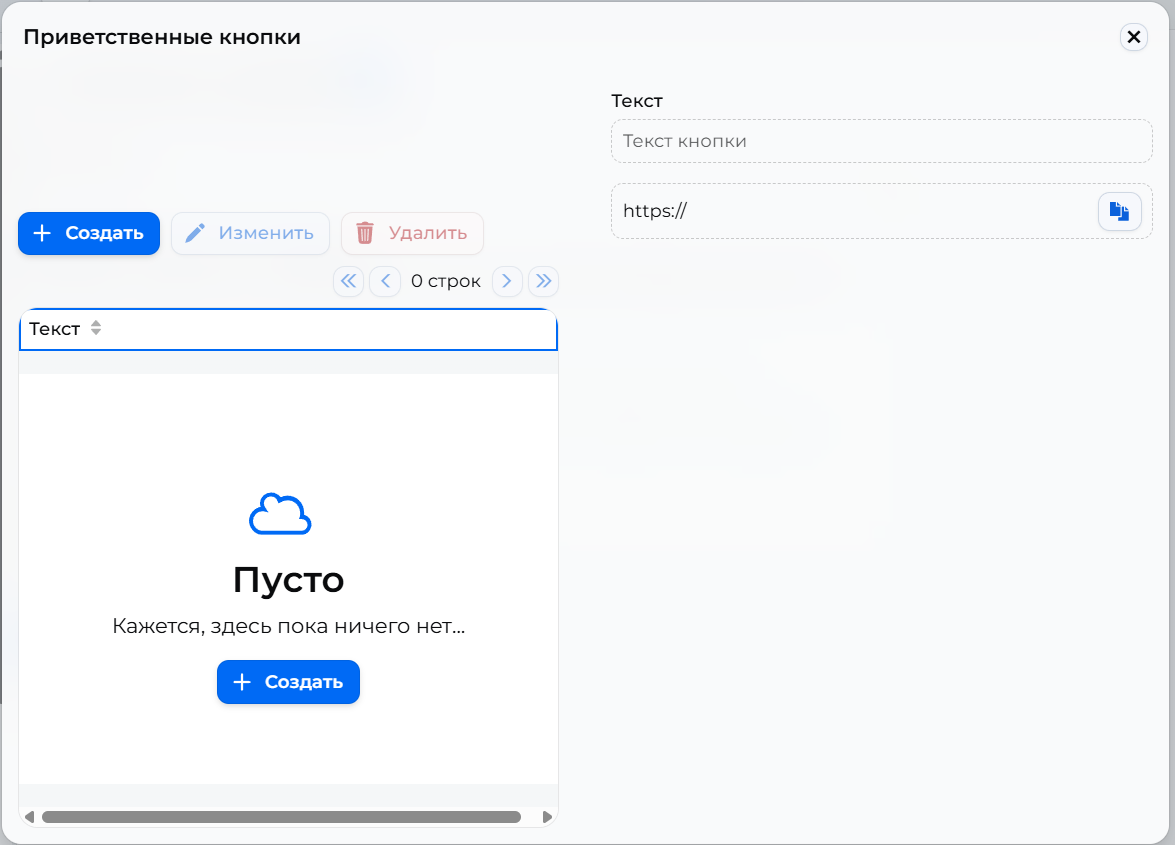
- Click Functional buttons — marker 3 in the screenshot above. The Welcome buttons window opens.
- Click Create. Set a label in Text, such as Our website. Enter the page address in the field below; the
https://prefix is already present. - Click Save in the editing window. Use Edit and Delete for later changes.
View the full-size screenshot.
Each link appears as a separate button below the welcome message, before the app launch button.
5. Set up a Mini App for product links
Share on a product page gives signed-in customers a Telegram link and guests a website link. For a Telegram link to open the app with that product, the bot needs a Mini App with the short name app. Without it, Telegram opens the bot chat.
- Copy the store address: Open website in your personal account, or the CRM user menu → Go to app.
- Send
/newappto @BotFather and select your bot. - Follow BotFather's questions; enter the store address and the short name app.
You can also configure the chat menu button: /mybots → your bot → Bot Settings → Menu Button, then the store address.
6. Check the customer experience
- Reload the CRM page: the switch should remain enabled, the token filled in, and the welcome message unchanged.
- Open your bot in Telegram using its username. Press Start or send
/start. - Check the welcome text and image, if uploaded, then each additional link.
- Open the store, catalog, or menu using the bot's button on your phone. It should open your store's app. If you configured a Mini App, also check a product's Share link.
After checking, you can share the bot link or a QR code with customers.
No reply from the bot? Check the switch and token: it must belong to this bot and be pasted in full, without spaces. If the welcome message arrives but the app does not open, contact support with a screenshot of the error and your store address. Hide the token in the screenshot.