Combining two products by color
Combine two separate products into one group so customers can choose a color directly in the product card.
Where: Catalog → Products. The shared screenshots show the Russian interface.
In this example, a café sells vanilla macarons, 3 pieces, for 360 rubles, in pink and pistachio colors. The filling and flavor are the same; only the almond shells' color differs.
1. Prepare two products
The catalog must already contain two simple products:
| Product | Photo | Price |
|---|---|---|
| Vanilla macaron — pink, 3 pieces | Pink macarons | 360 rubles |
| Vanilla macaron — pistachio color, 3 pieces | Green macarons | 360 rubles |
If the products do not exist, add each through Create → Create single — see Categories and products. For a restaurant menu sent to iiko, use Add from iiko and the matching menu items.
Before merging
The selected products must not yet have any orders. Merge products of the same type: regular products with regular products, or iiko products with iiko products. Record their stock quantities by store and article codes: you will need to set them again after merging. Saving the new group replaces the original products.
2. Merge the products
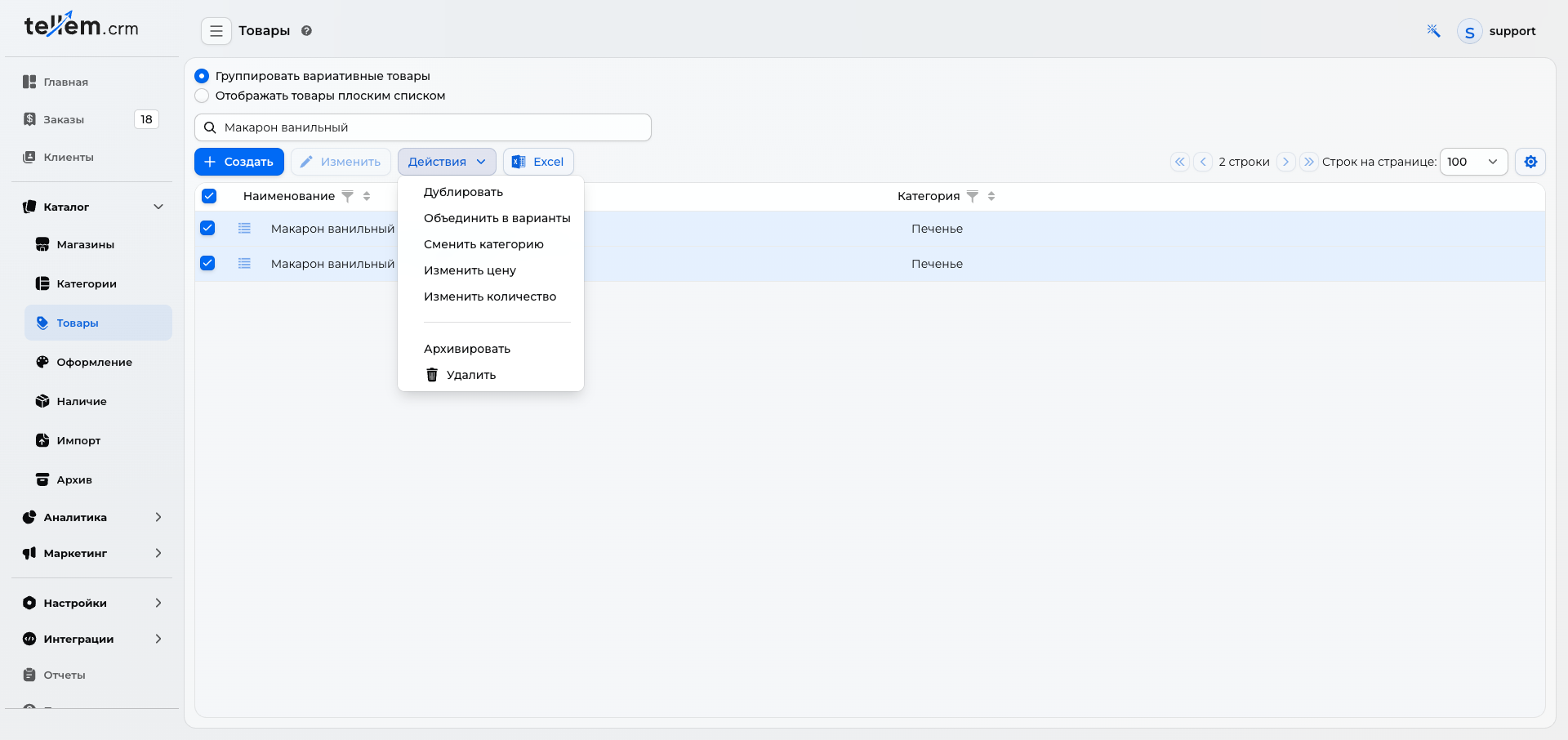
- Select Group variative products.
- Search for “Macaron” and press Enter.
- Select both rows using the checkboxes.
- Open Actions → Transform to variants.
- In the product editor, set Name of group to Vanilla macaron, 3 pieces and check the category.
3. Add the Color attribute
On Main, under Variative attributes, click Create. In the attribute template window, select Color and click Select.
If no suitable template exists, create one in the same window: set Name to Color, Type to Color, and click Save. Then select the template for the group.
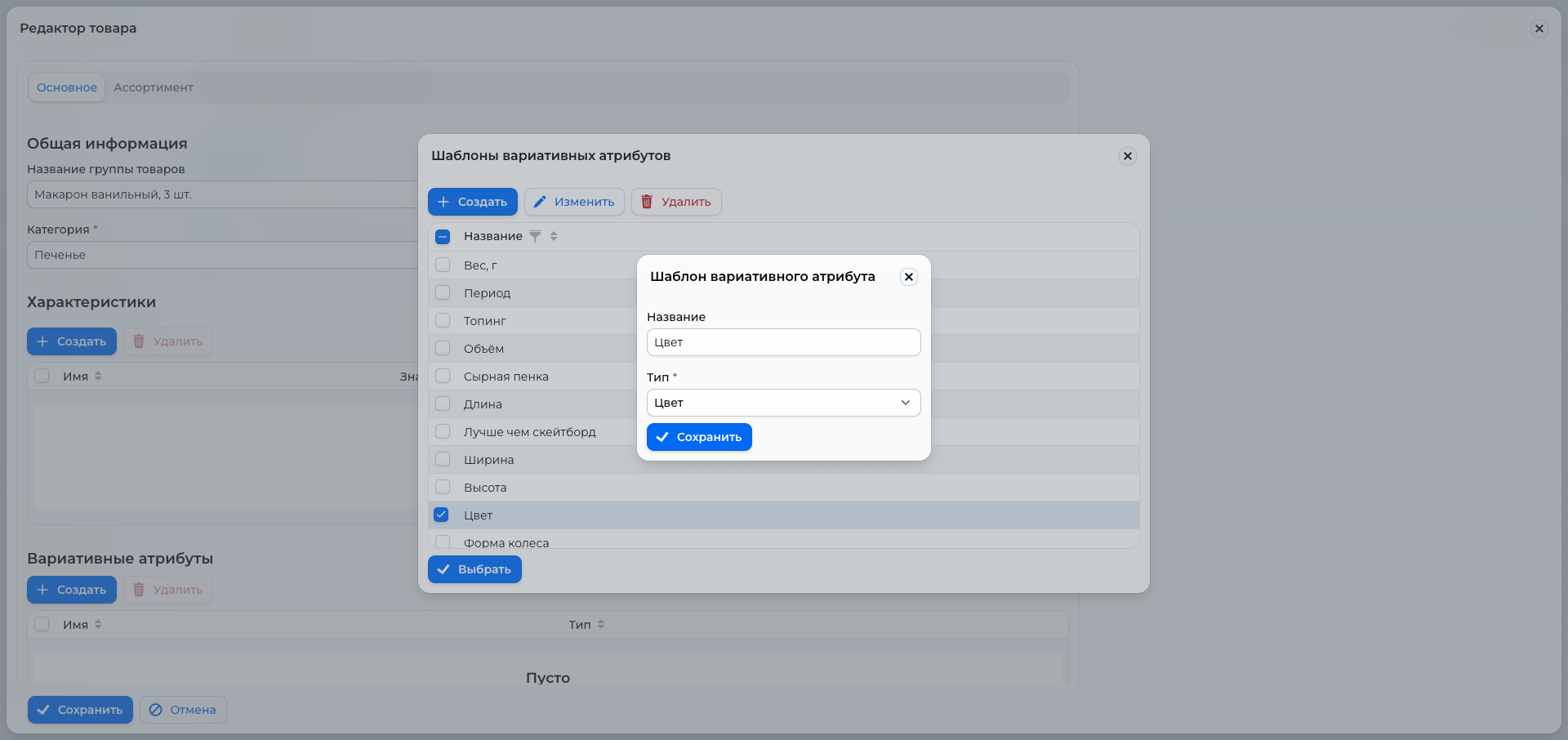
The Color type gives customers colored circles. A text attribute with the same name shows text buttons.
4. Assign colors to variants
In the variants list, select the pink macaron and click Edit. In its card, scroll to Variative attributes and click Edit in the Color row.
Choose an existing shade or Create…. For a new color, enter its name and choose a shade using the colored square:
| Variant | Color name | Example color code |
|---|---|---|
| Pink macaron | Pink | #E7A3AD |
| Green macaron | Pistachio | #ABC47D |
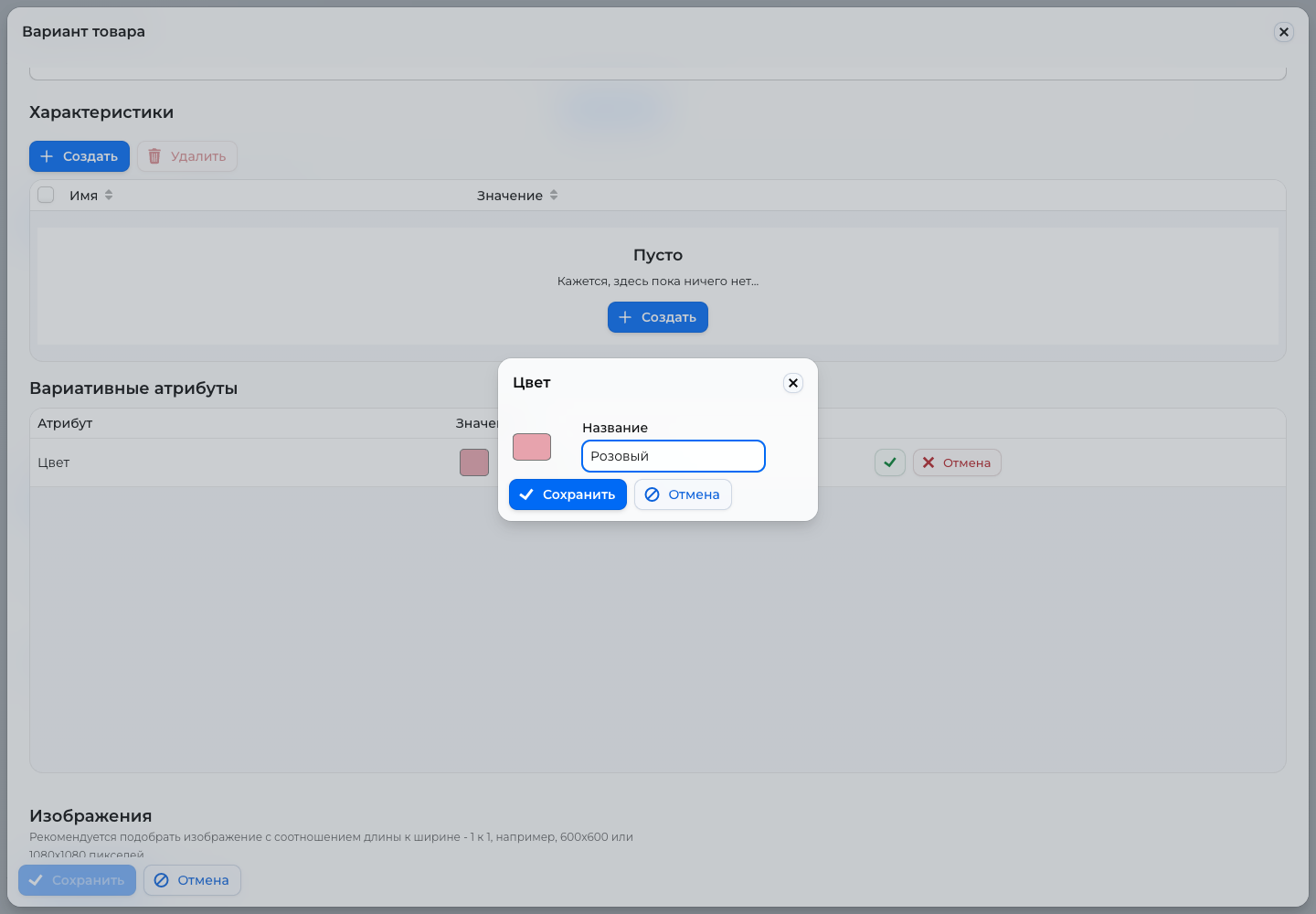
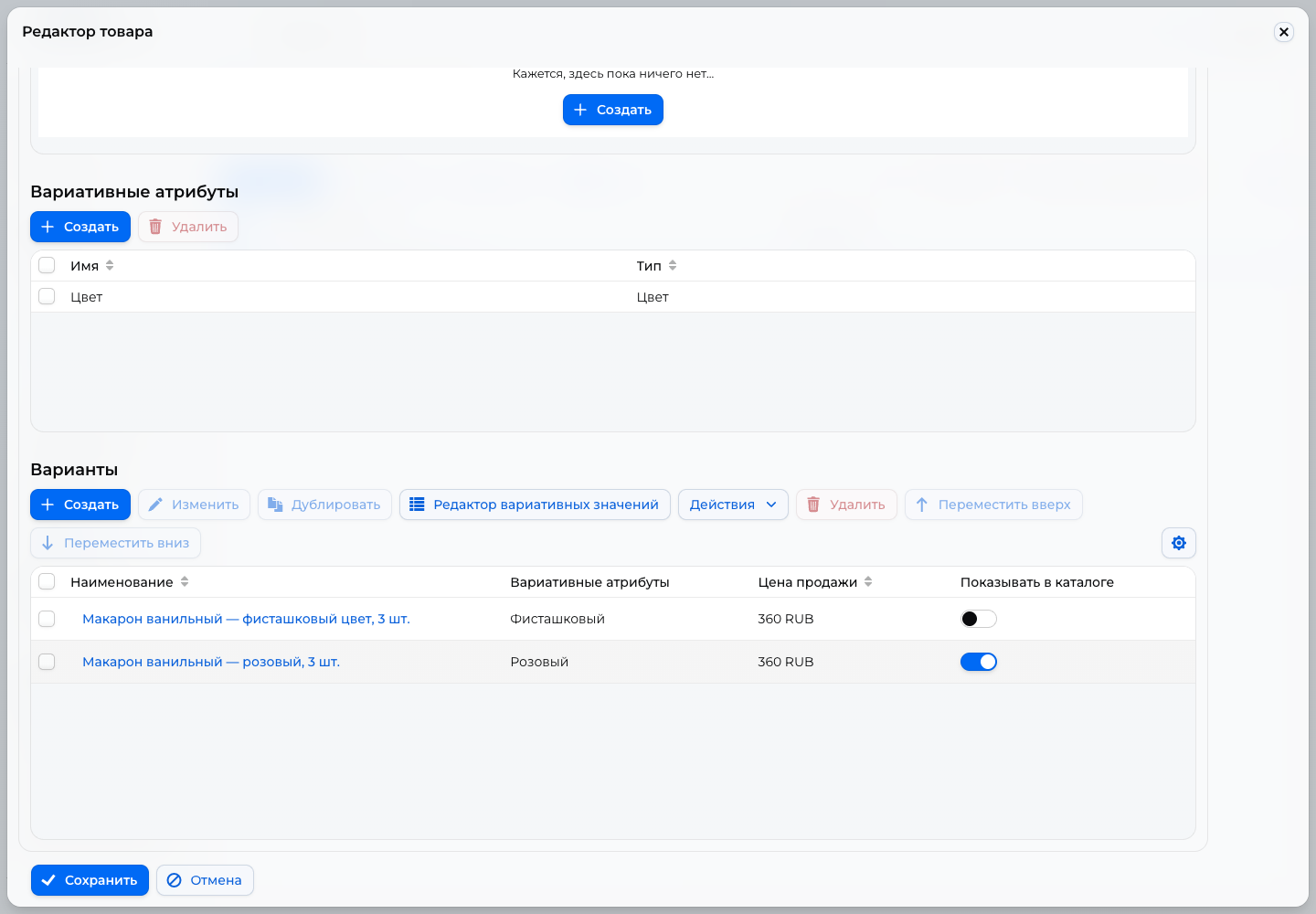
Save the color, check the variant's photo and price, set an article code such as VAN-PINK-3, and click Save in the variant card. Repeat for pistachio with VAN-GREEN-3. The color values must differ.
To show one card in the category, leave Show in catalog enabled only for the pink variant. Pistachio remains available through the selector inside the card. To show both cards in the category, enable this checkbox for both variants.
5. Set stock and save
On Assortment, select a store and set each variant's quantity using Edit in its row. Confirm each row using the checkmark button. This example uses 30 sets of each color. Repeat for other stores as needed — see Inventory.
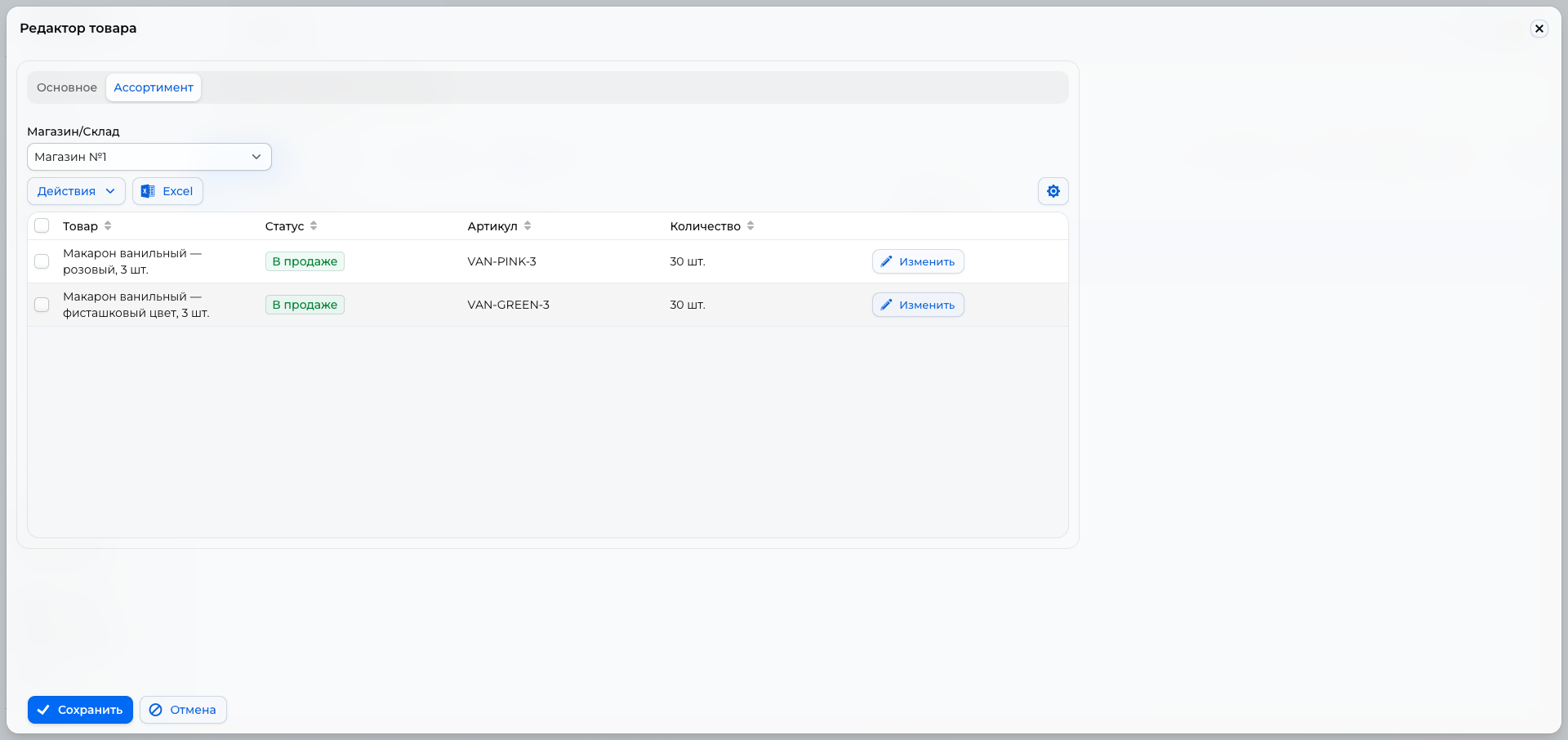
Click Save at the bottom of the product editor. If the CRM offers to configure empty stock in other stores, choose Yes to configure it or No if the product is not yet sold there.
6. Check the customer experience
Open the app, select the correct store, and find the macaron in its category. The card shows Color: Pink and two colored circles below the price. Tapping the pistachio circle switches the variant: the photo, name, color label, and article code change. An outline marks the selected circle.
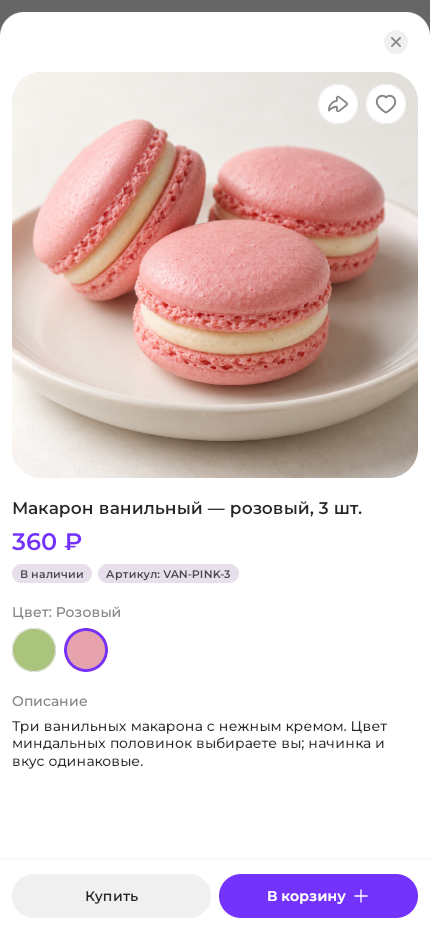
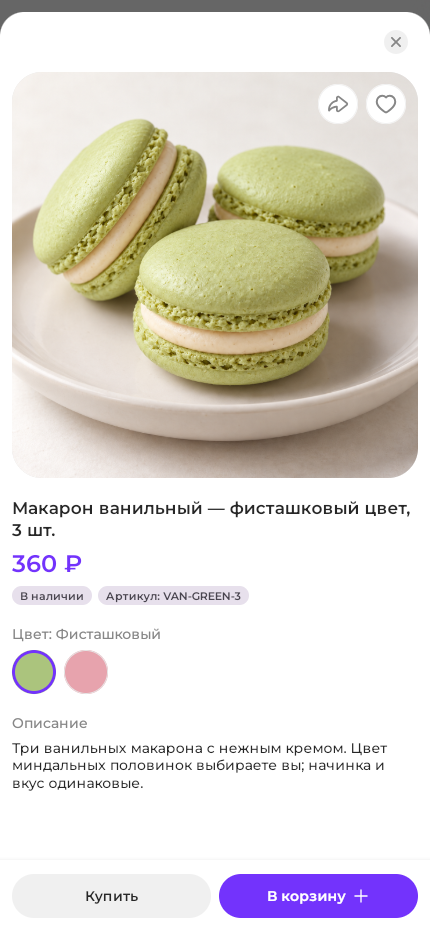
The example price stays at 360 rubles; if variants have different prices, it changes too. The purchase buttons apply to the selected color. Before opening sales, switch between both colors and check photos, prices, and stock. More details: Storefront and cart.